AI models
Learn how on-device models and cloud AI services differ, and choose the model for Prompt and skills.
Typeside uses AI models to write and edit text. The model you use decides where your text is processed and what it costs.
Typeside uses two kinds of AI models.
- On-device light model: a model (about 3.8 GB) downloaded when you install Typeside. It's used for Autocomplete, Improve, Translate, Summarize, and Polish dictated text in Dictation. It's free, and you don't need to choose or change it.
- Models for Prompt and skills: used for Prompt, Shorten, Expand, and skills. They need a Pro license. Download an on-device general model to your Mac, or connect a cloud AI service with an API key.
Choose a model
Prompt and skills use either an on-device general model or a cloud AI service.
| On-device general model | Cloud AI service | |
|---|---|---|
| Where it runs | This Mac | The AI service you connect (OpenAI, Anthropic, and so on) |
| Where your text goes | It never leaves your device | It goes straight from this Mac to that service |
| Cost | No extra cost | The service bills you separately for usage |
| Internet connection | Not needed after downloading | Needed |
| Setup | Download a model from Hugging Face | Connect the service's API key |
- If you don't want your text to leave your device, or you want to avoid extra costs, choose an on-device general model. See Download on-device models.
- To use a more capable model, choose a cloud AI service. See Connect a service.
To register a Pro license, see Activate your license.
The Models screen
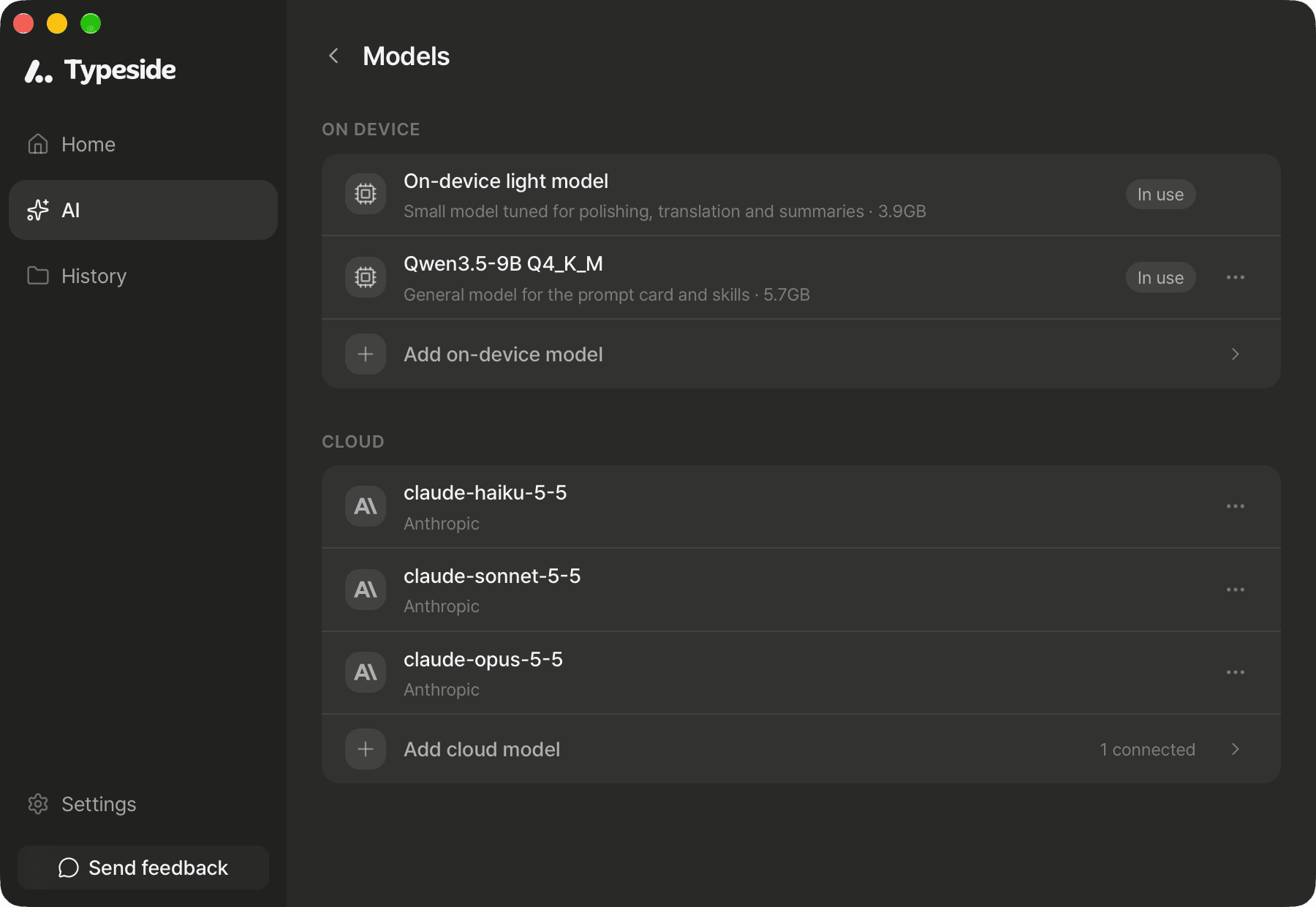
Click AI in the main window sidebar, then open Models.
- On device: shows the on-device light model and any general models you've downloaded. Once downloaded, the light model always shows In use. If you have more than one general model, click Use on the one you want.
- Cloud: shows your favorite models (★) from connected services.
Default model
The model Prompt and skills use is chosen in this order:
- If you chose a model for the skill, that model is used.
- Otherwise, the Default model is used.
- If you haven't chosen a default model either, the general model marked In use under On device is used.
The default model is used by Prompt and by any skill without its own model. Choose it in Default model under Defaults on the AI screen.
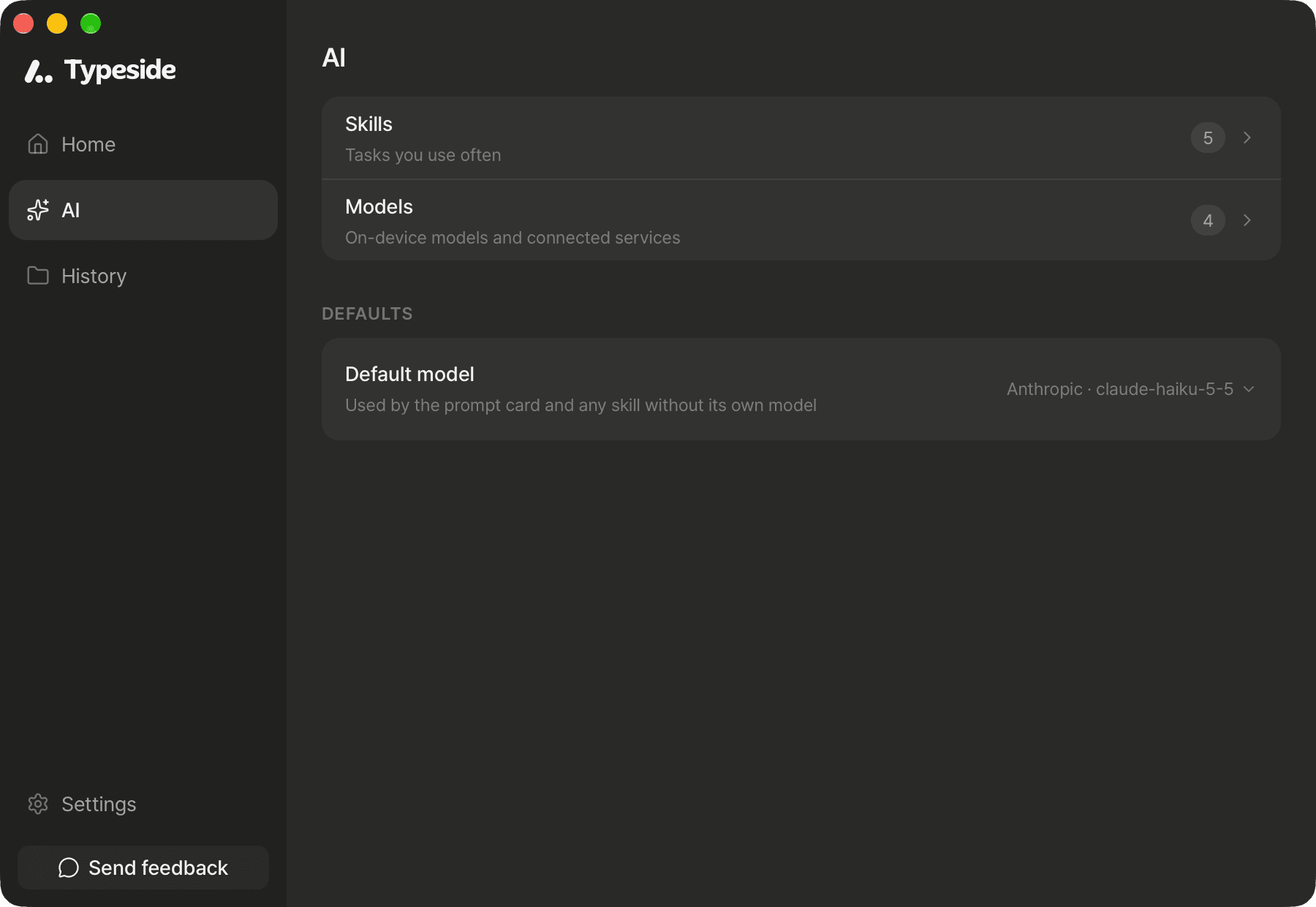
To add a model that isn't in the Default model list, choose Find in all models…. To add a new service, choose + Connect a new service….
- To use a different model for each skill, see Create a skill.
- To use a different model for just one request, click Model in Prompt. See Prompt.
Process on this device only
When Process on this device only is on in Settings ▸ Data, Typeside doesn't send your text to outside services. Skills and Prompt set to use a cloud service are locked. On-device models and Ollama running on your Mac keep working. For details, see Privacy.
FAQ
On-device general models and cloud services are available with a Pro license. Click License to activate your Pro license.
The service chosen for your default model or a skill isn't connected. Click Open AI models in Prompt, then connect the service or change Default model to an on-device model.
You don't have a model to use yet. You usually see this right after activating a Pro license. Click Open AI models in Prompt, then download an on-device model or connect a service.