Quick edit
Improve, translate, or summarize text right where you selected it.
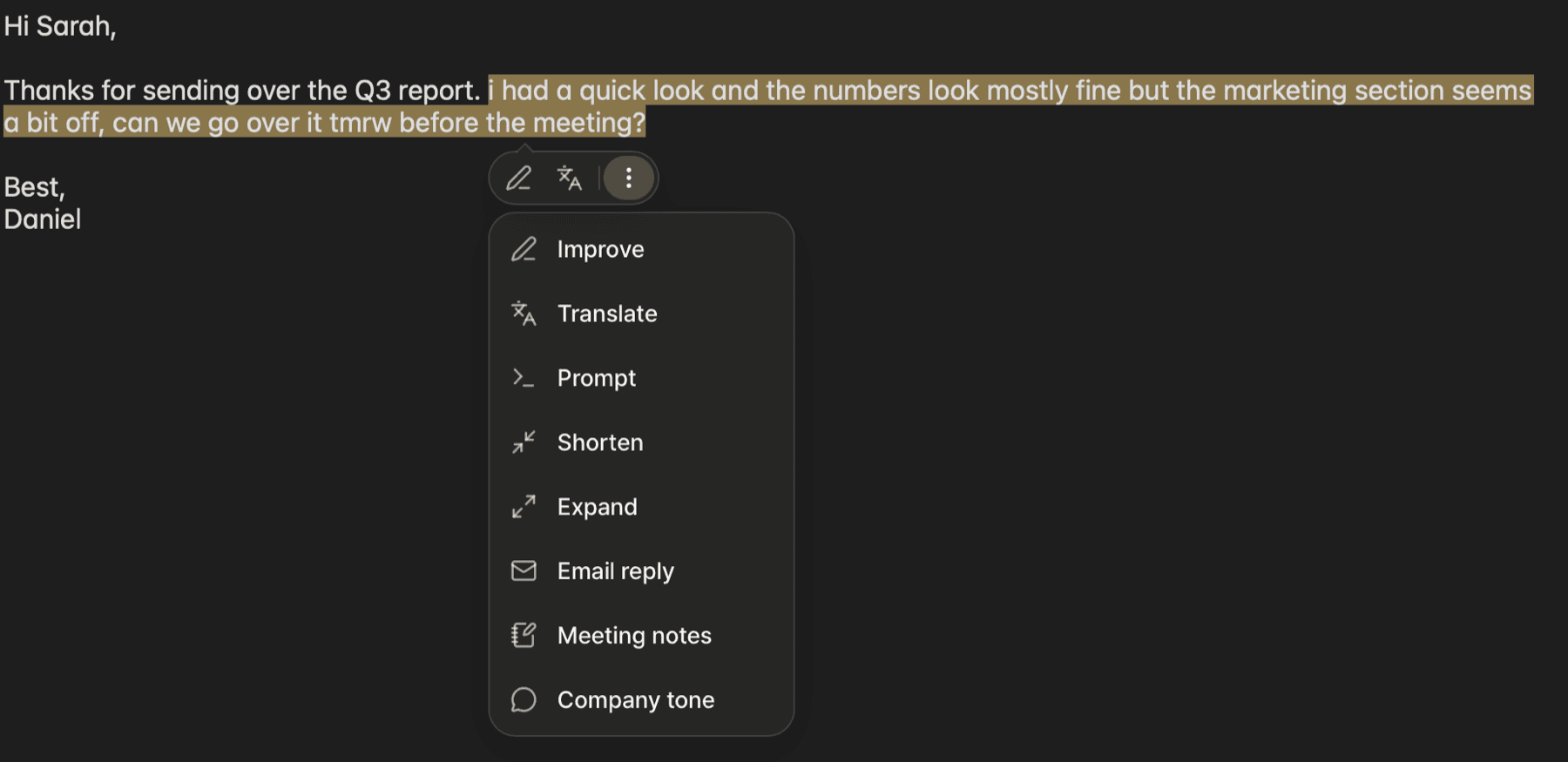
Quick edit improves or translates selected text without switching to another app. When you select text, the quick edit button appears next to it.

How to use it
Select the text you want to edit.
Click the action you want on the quick edit button. At first, the Improve and Translate icons appear. For other actions, click ⋮ (More).
On the result card, click Apply or press Return. The selected text is replaced with the result. For text you can't edit, such as a web page, review the result and click Copy if you need it.
On the result card, you can also:
- Copy: Copies the result to the clipboard.
- Retry: Generates a new result for the same request.
- Result / Changes: For Improve, Shorten, and Expand, compares the original with what changed. The text you apply or copy is always the result.
- Translation language: Click the language on the card to change the target language. Text is translated into English at first. To translate into another language, choose it here.
To close the card, click outside it or press Esc.
Actions
The actions you see depend on whether you selected text in an input field you can edit, or text you can't edit, such as a web page or PDF.
| Action | What it does | Input field | Read-only text |
|---|---|---|---|
| Improve | Fixes spelling and polishes sentences | ✓ | |
| Translate | Translates into another language | ✓ | ✓ |
| Summarize | Summarizes the key points | ✓ | |
| Prompt | Opens Prompt so you can ask for what you want | ✓ | ✓ |
| Shorten | Makes it shorter | ✓ | |
| Expand | Adds more detail | ✓ |
Your skills also appear in this list. You can set where each skill appears. See Create a skill.
Pin actions to the quick edit button
To show an action you use often on the quick edit button, hold the pointer over the action in the list and click the pin icon (Pin) on the right. To unpin it, click the same icon (Unpin).
You can pin up to 3 actions. If you pin another, the one you pinned first is unpinned.
Settings
You can change these in Settings ▸ Editing.
- Show quick edit button when text is selected: Turns the quick edit button on or off. It's on by default.
- Quick edit and Prompt position: Choose whether the quick edit button appears below (default) or above the selected text. If there isn't enough room, it appears on the other side.
- Apply results automatically: Applies results right away without review. It's off by default.
- Default translation language: The default target language for Translate. It's set to English at first. If you change the language on the card, that language becomes the next default.
To keep the quick edit button from appearing in a certain app, add the app under Settings ▸ General ▸ Exclusion.
FAQ
- Check that Show quick edit button when text is selected is on in Settings ▸ Editing.
- Check that the app isn't added under Settings ▸ General ▸ Exclusion.
- Check that Accessibility permission is on. See Install and permissions.
The quick edit button is hidden while you scroll or move a window. It appears again when the movement stops and the selected text is on screen.
This feature needs an additional download. Click Download now. You can use the feature as soon as the download finishes.