Activate your license
Register this Mac with your license to use Pro features such as Prompt, Shorten, Expand, and skills.
To use Pro features such as Prompt, Shorten, Expand, and your own skills, register your Mac with your license. Improve, Translate, Summarize, Autocomplete, and Dictation are free without a license.
You can buy a license on the pricing page.
Open the License screen
Open Settings ▸ License. Before you register, it shows "No license registered."
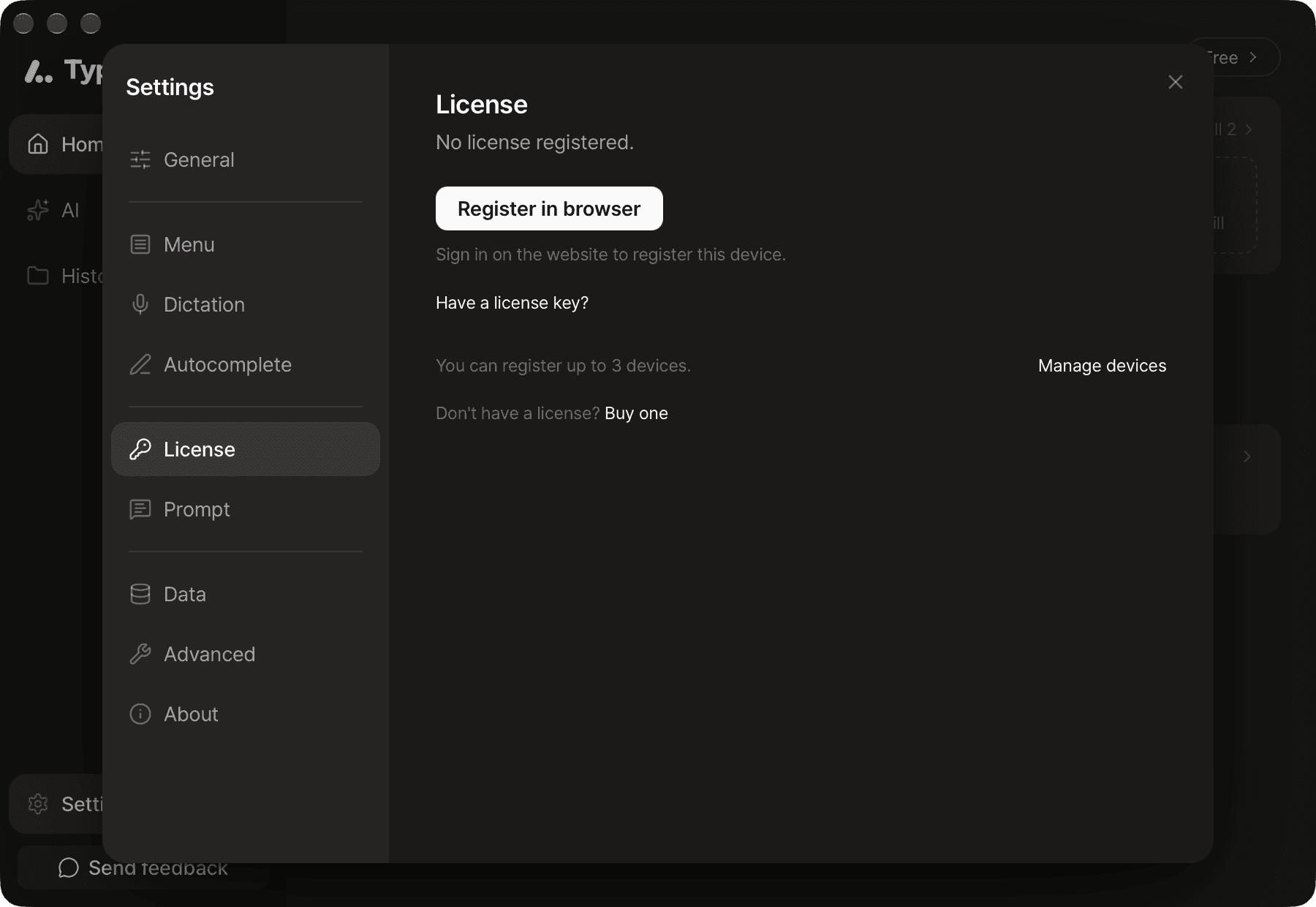
There are two ways to register. Both need an internet connection.
Register in browser (recommended)
Sign in on the website with the account you used to buy the license, and register your Mac. You don't need to enter a license key.
- Click Register in browser. The registration page opens in your browser, and the app shows a confirmation code.
- Sign in on the website, then check that the code on the page matches the code in the app.
- Click Register this device.
- The app shows "License applied."
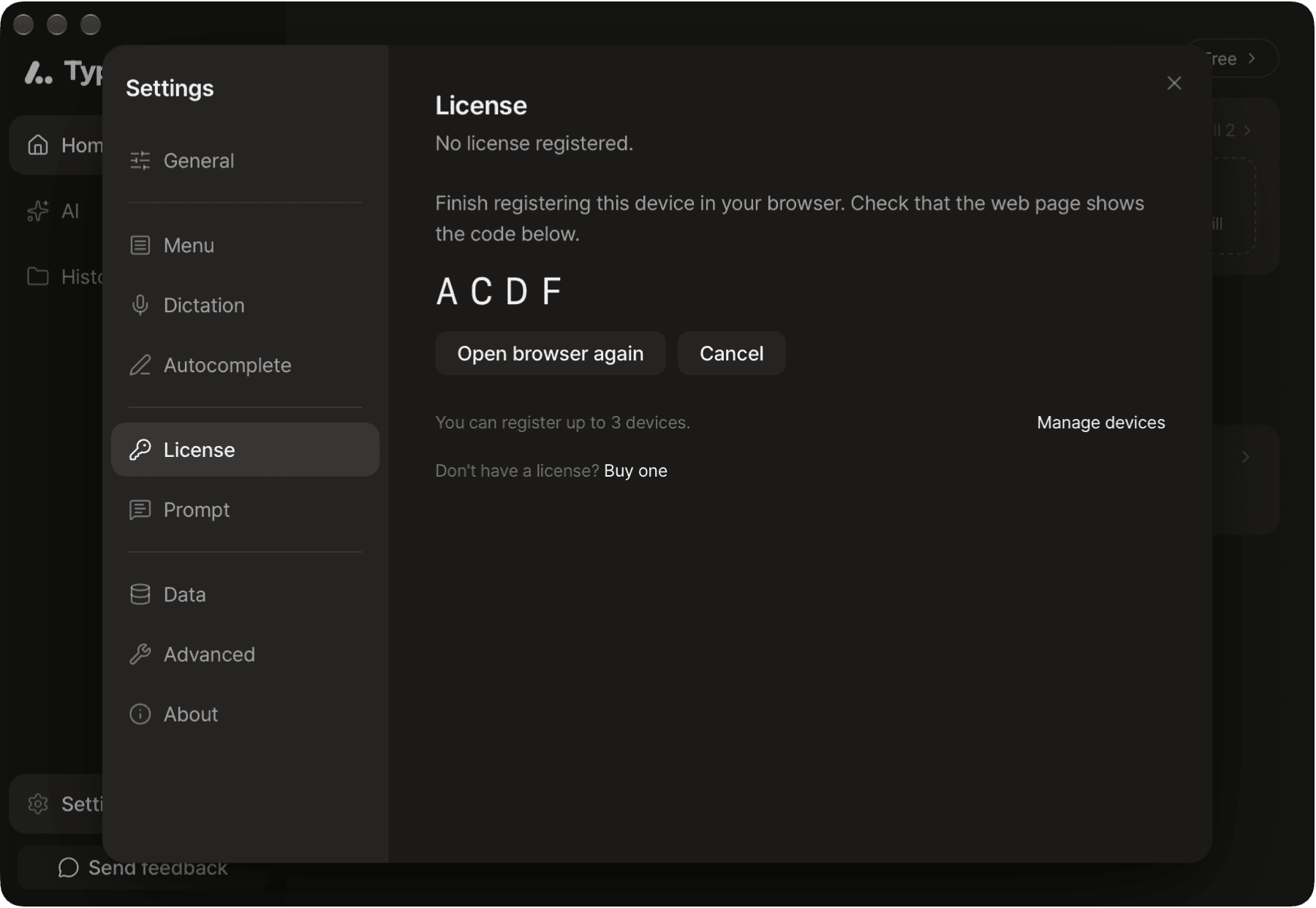
If you closed the browser window, click Open browser again. A request stays valid for 10 minutes. After that, click Register in browser again.
Register with a license key
- Click the Have a license key? link.
- Paste the license key you received with your purchase.
- Click Register.
After registering
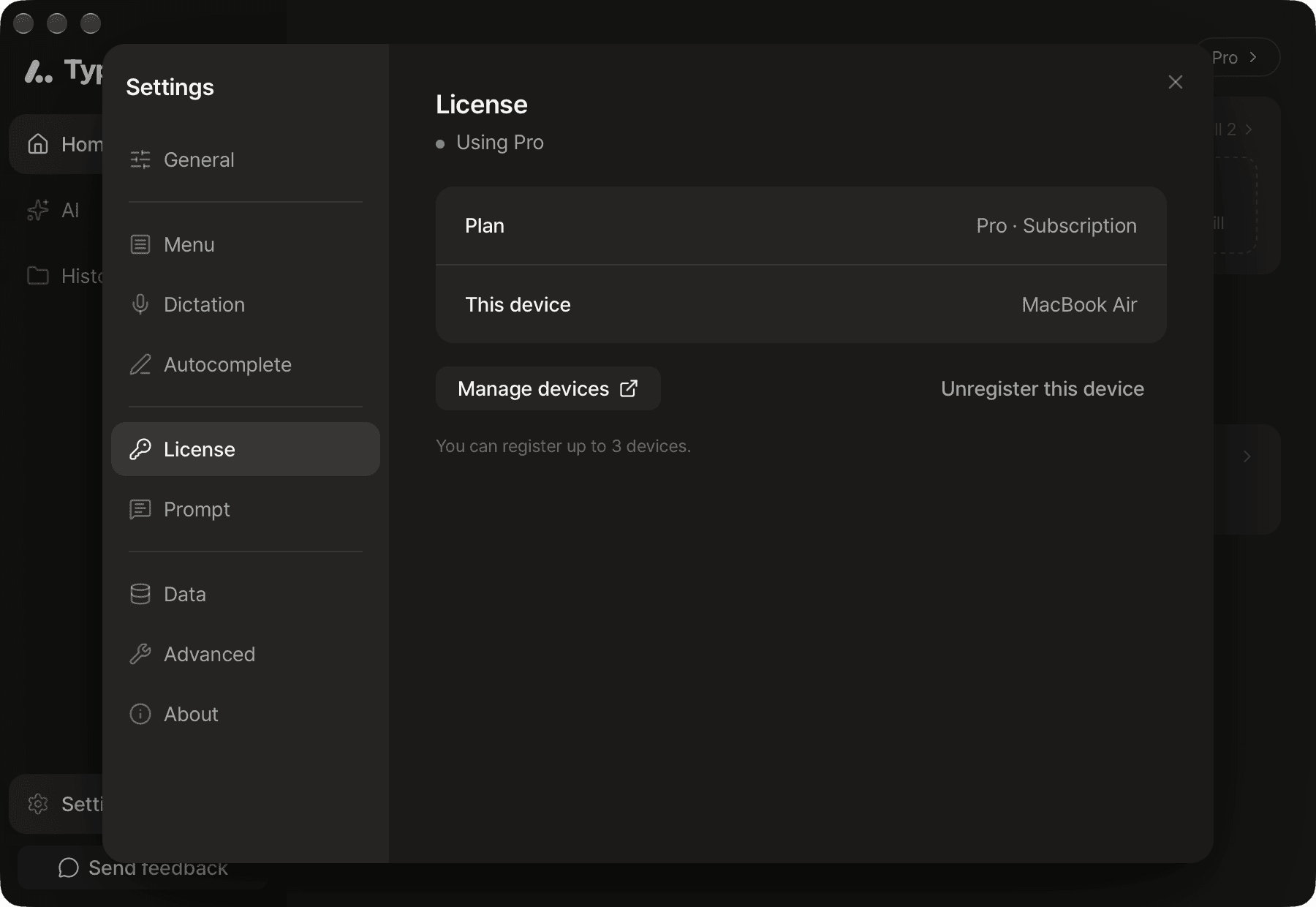
The top of the screen shows "Using Pro."
- Plan: Shows "Pro · Lifetime" or "Pro · Subscription".
- This device: The name of this registered Mac.
- Manage devices: Opens My Account on the website, where you can see and remove registered devices.
- Unregister this device: Removes this Mac's registration.
Number of devices
One license covers up to 3 devices. To register another device, first remove one you no longer use. Remove this Mac with Unregister this device, and other devices in Manage devices.
Move to a new Mac
- On your old Mac, click Unregister this device in Settings ▸ License. If you can't use your old Mac, open Manage devices on another device and remove it there. If fewer than 3 devices are registered, you can skip this step.
- Install Typeside on your new Mac and register your license.
Settings, skills, history, and connected services don't sync between Macs. Set them up again on your new Mac.
Manage your subscription
Manage your subscription and billing on the My Account page on the website. Sign in with the account you used to buy the license.
- Cancel your subscription: Click Cancel subscription. You can keep using Pro until the end of the current billing period, and you can reverse it before then with Undo cancellation.
- Change your billing cycle: Click Switch to monthly billing or Switch to annual billing.
- Change your payment method or view receipts: Click Open billing.
Internet connection
You can use Pro features for 30 days after your license was last checked online. When you're connected to the internet, the app checks automatically.
- Starting 7 days before Pro features lock, the License screen asks you to connect to the internet.
- After 30 days, Pro features lock. Free features keep working.
- Pro features turn back on automatically when you connect. To check right away, click Check now.
Troubleshooting
Click Manage devices, remove a device you no longer use in My Account, then try again.
The subscription may have ended, or you may have used a different account to buy it. Sign out on the website, click Open browser again in the app, and sign in with the account you used to buy the license.
The registration was removed, or the subscription period ended. Click Register again to use the saved license. To remove the license from this Mac, click Remove license.