Prompt
Ask for what you want written, and the AI's text is entered at the cursor.
Describe what you want, such as "Politely say I can't attend tomorrow's meeting," and Prompt writes it for you. When you press ⌥ Space, a card opens next to the cursor.
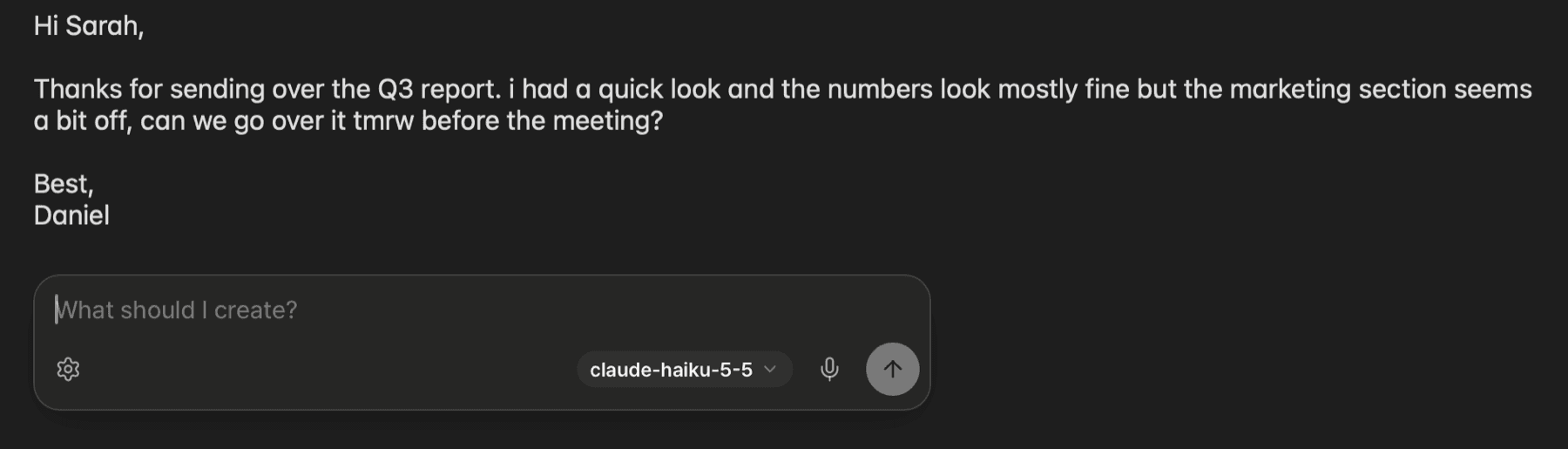
How to use it
Put the cursor in an input field and press ⌥ Space.
Type what you want and press Return or click Send.
Review the result, then click Apply or press Return. The text is entered at the cursor.
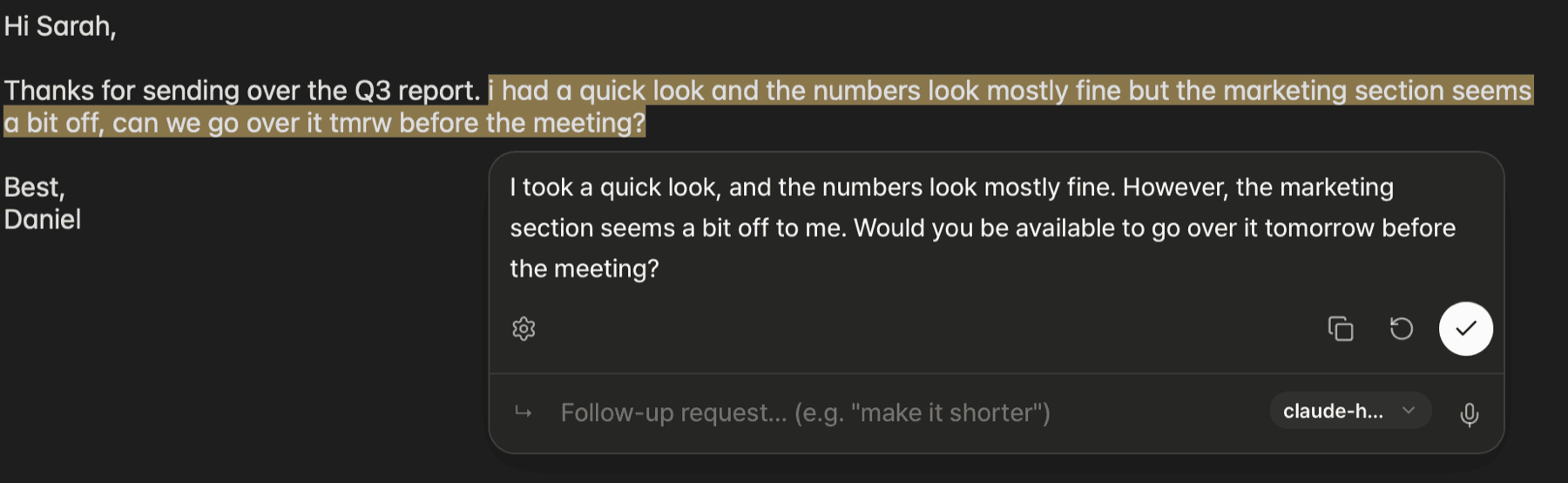
After a result appears, you can also:
- Follow-up request field: Ask for more, such as "make it shorter," to revise the result.
- Copy: Copies the result to the clipboard.
- Retry: Generates a new result for the same request.
To close the card, click outside it or press Esc.
Make a request with selected text
If you press ⌥ Space while text is selected, the selected text is attached to the card. You can then ask for something about the attached text, such as "Put this in a table." To remove the attachment, click Remove selection.
Clicking Prompt in the Quick edit list opens the same card.
Make a request by voice
Click Voice input and speak. What you say is entered in the input field. To stop without sending, click Stop or press Esc. To send right away, press Return.
Voice input on the card uses the Apple engine regardless of your dictation engine setting, and needs Microphone and Speech Recognition permission.
Run a skill with a /command
To run a request you use often right from the card, save it as a skill.
Type / at the start of the input field. A list of skills appears.
Type part of a skill name or command, and use ↑ and ↓ to choose a skill.
Press Return or Tab to choose the skill.
Type anything else you need and press Return. If you selected text beforehand, you can send without typing anything.
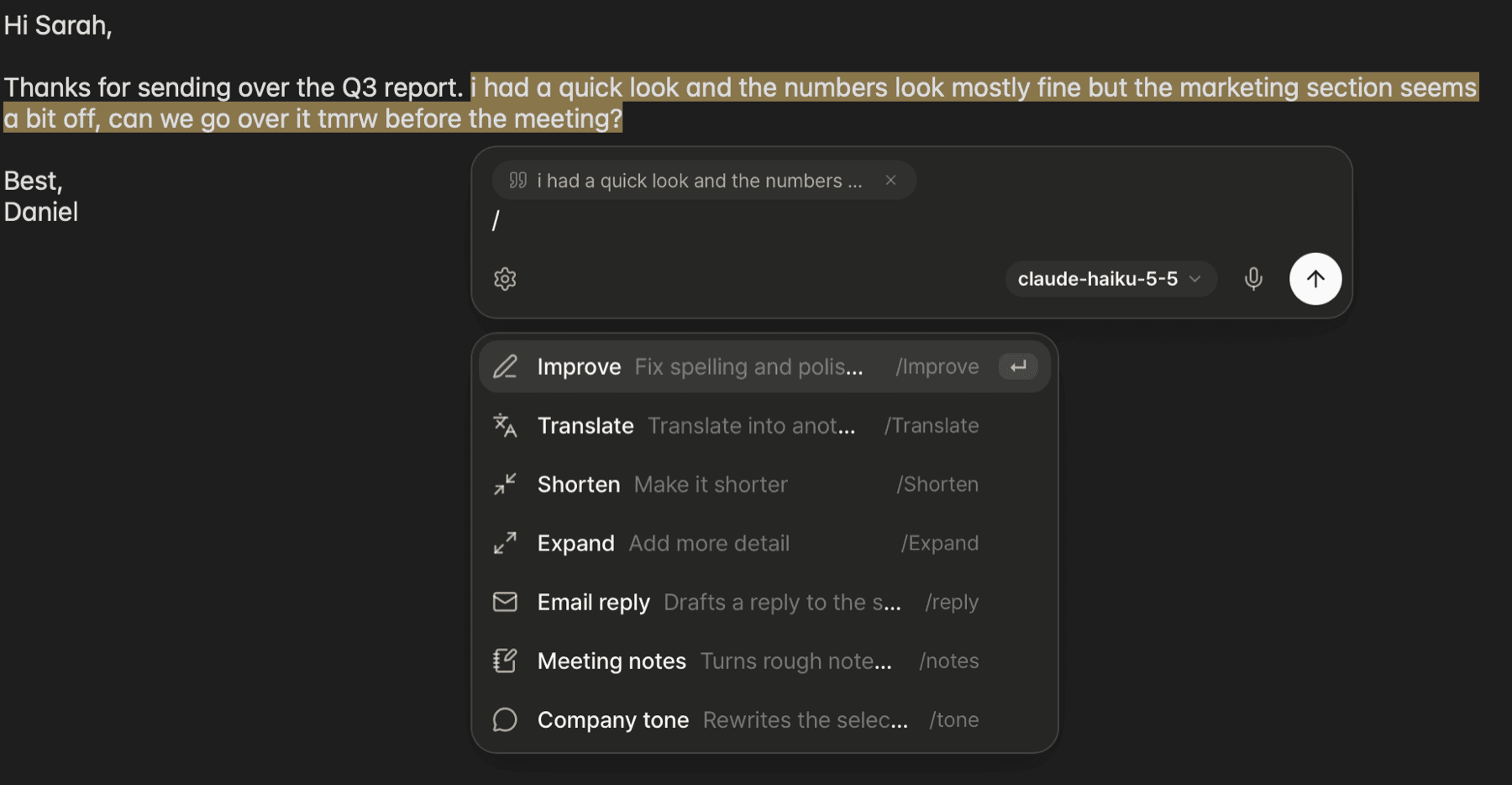
To remove the chosen skill, press Delete at the start of the input field or click Remove skill.
Which model it uses
Prompt writes text with the Default model. Choose the default model on the AI screen of the main window. If you don't choose one, Prompt uses the on-device general model marked In use on the AI screen. To use a different model for this request only, click Model on the card. For details, see AI models.
Settings
You can change these in Settings ▸ Editing.
- Prompt shortcut: Changes the key combination that opens Prompt. Click Default to go back to ⌥ Space.
- Submit immediately when you press the stop button: Sends your request as soon as you stop voice input. It's off by default.
- Quick edit and Prompt position: Choose whether the card appears below (default) or above the cursor.
Prompt context
Prompt sends the name of the app you're using along with your request. To add other information, turn it on under Prompt context in Settings ▸ Prompt. All of it is off by default.
- Use screen context: Text shown on screen
- Use window title: The title of the current window
- Use clipboard: Text on the clipboard
After turning one on, click Allow selected context in the confirmation. Prompt uses everything you turn on here. Each skill can use some or all of it.
FAQ
- Check that the cursor is in an input field.
- Check that Accessibility permission is on. See Install and permissions.
- If you changed the shortcut, check the current key combination in Settings ▸ Editing ▸ Prompt shortcut.
There's no AI model to use yet. Click Open AI models on the card, then download an on-device model or connect a service. See AI models.
This hint shows you how to open the card. Once you open the card with ⌥ Space, it no longer appears.