Connect a service
Connect a cloud AI service such as OpenAI or Anthropic with an API key to use it in Prompt and skills.
Connect an AI service such as OpenAI or Anthropic to Typeside with your own API key. You can then use that service's models in Prompt and skills.
Before you start
Get an API key for the service you want to connect. An API key is a secret code an AI service issues so apps like Typeside can use your account. The service bills that account for what you use. Each service issues keys differently. Treat your key like a password: don't share it or paste it anywhere public.
To try it without paying for API usage, start with Google Gemini or Groq, which include free usage. Requests are limited once you go over the free usage.
- OpenAI
- Anthropic
- Google Gemini
- Groq
- OpenRouter
- xAI
- Ollama (models running on this Mac)
Connect a service
Click AI in the main window sidebar, then open Models.
Click Add cloud model, then choose a service from the Not connected list.
Paste your key into the API key field and click Connect.
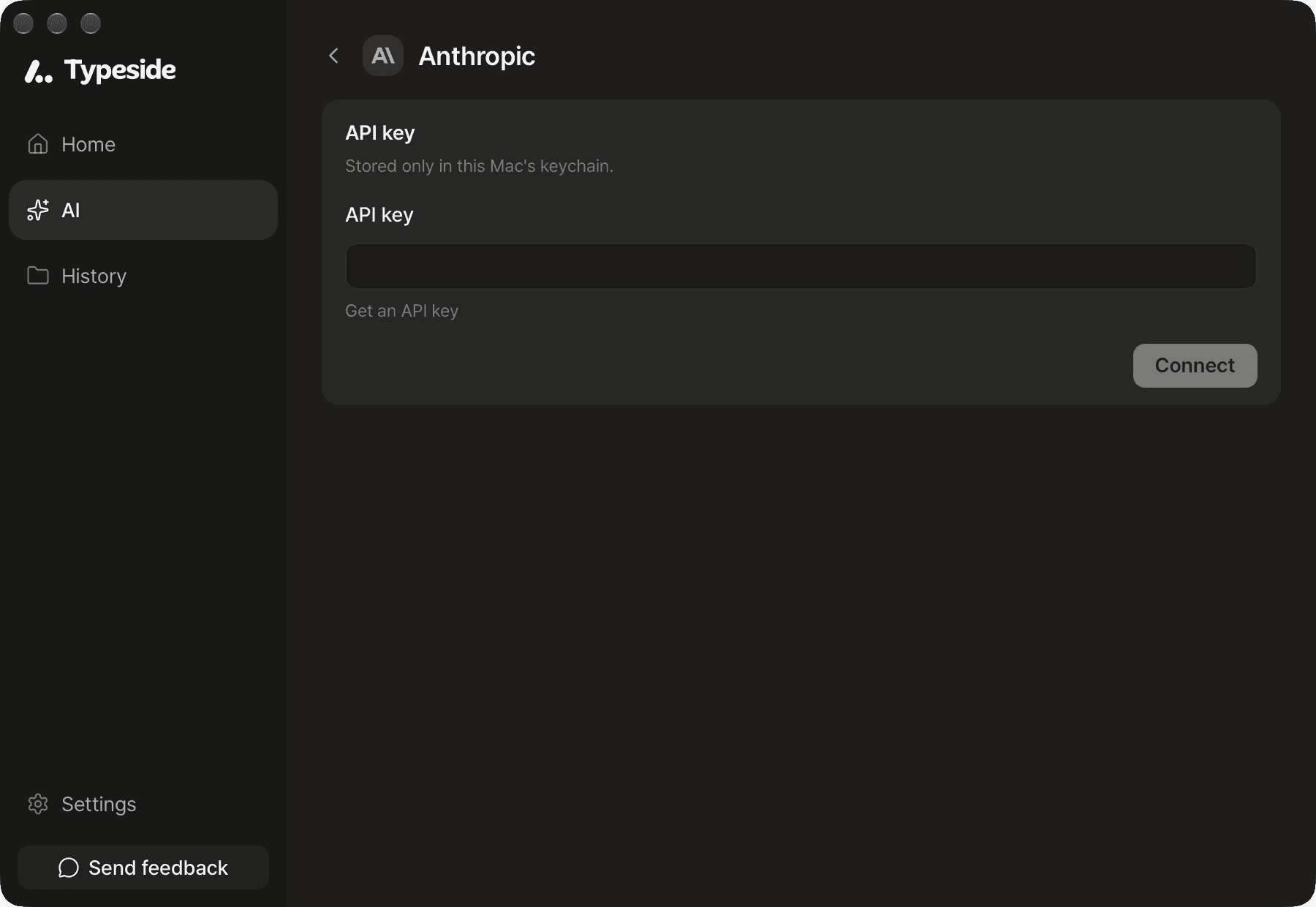
If you don't have a key, click Get an API key below the field. The service's key page opens.
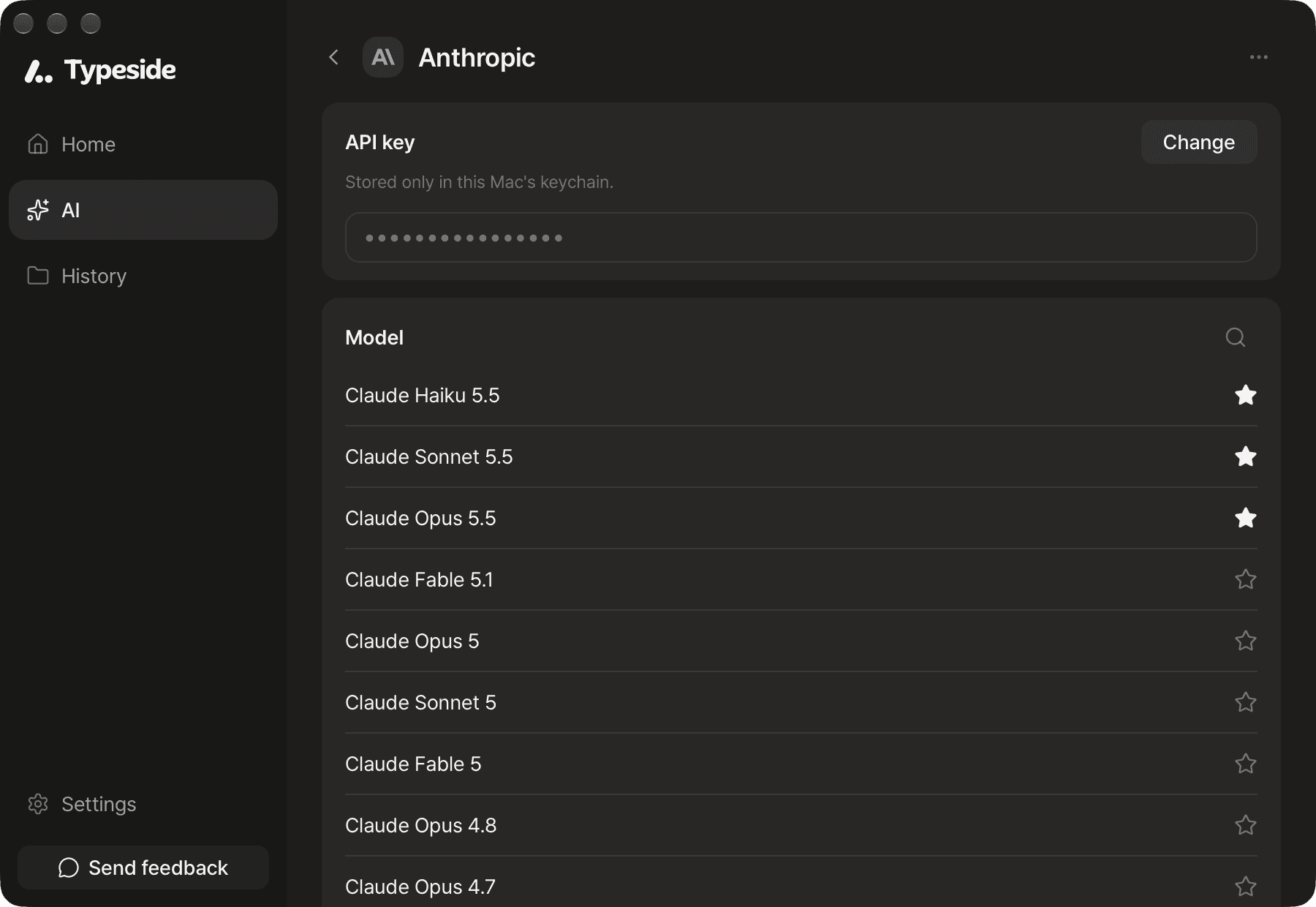
Once connected, a few of the service's newest models are added to Favorites (★), and you see "Model connected." If you didn't have a model to use yet, one of this service's models becomes your default model, and you see "Set as your default model." For the default model, see AI models.
Manage connected services
In AI ▸ Models, click Add cloud model to see your services in the Connected list. Click a service to change the following:
- Change the key: Click Change next to API key.
- Favorites: Click ★ next to a model in the Model list. Favorite models appear when you choose a model. Models marked "Not available with this key" can't be used with your current key.
- Disconnect: Choose Disconnect from the ⋯ menu at the top right. The stored API key is deleted too. If your default model was from this service, the default model goes back to the on-device general model. Choose another model for any skills that used this service.
Connect a service that isn't listed
If a service isn't listed, you can still connect it as long as it accepts OpenAI-compatible requests. Choose Custom endpoint in the Not connected list. Enter the address the service gives you in Address (for example, https://api.example.com/v1), then enter your API key.
If the service doesn't provide a model list, you're asked to enter the model name to use. Enter the model name the service gives you in the Model field, then click Connect again.
FAQ
- Make sure you copied the whole key. Keys are long, and the end is easy to cut off.
- Check on the service's site that the key hasn't been deleted or expired. If you created a new key, update it with Change.
The key is fine, but your account with that service has no credits. Your service stays connected. Add credits or a payment method on the service's site, then try again. A chat app subscription alone doesn't let you use the API.
You've sent more requests than the service allows in a short time. Your service stays connected. Try again in a moment.
With Process on this device only on, Typeside doesn't send your text to outside services. Turn it off in Settings ▸ Data. Ollama running on your Mac works regardless of this setting.