Download on-device models
Download a model from Hugging Face to use Prompt and skills without sending your text off this Mac.
To run Prompt and skills on your Mac, download an on-device model. Your text never leaves your device, and once downloaded, the model works without an internet connection.
Models come from Hugging Face, a site that hosts public AI models. Model files are several GB in size.
Download a model
Click AI in the main window sidebar, then open Models.
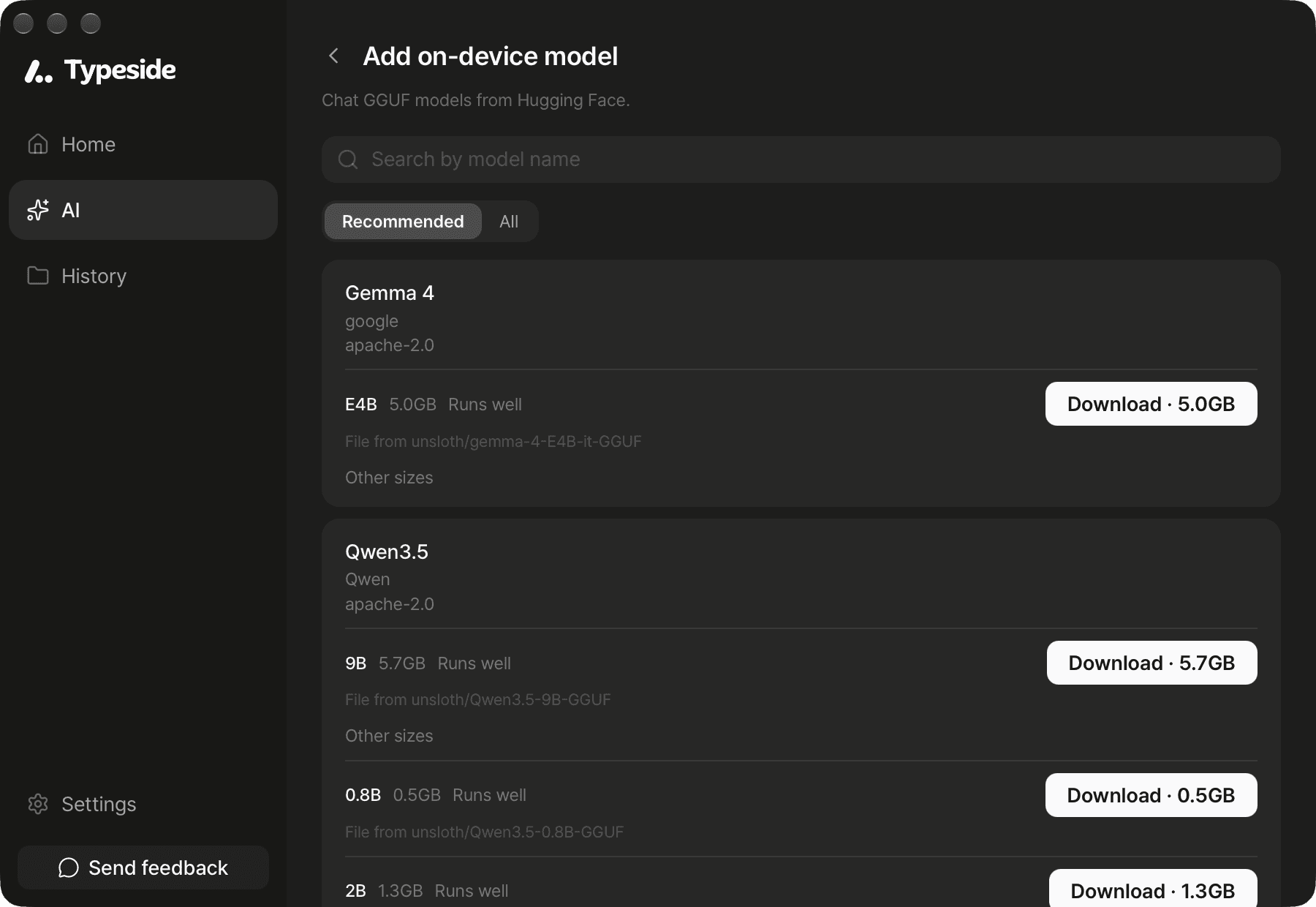
Click Add on-device model.
Choose a model in the Recommended tab, or type a model name in the search field. If it isn't in the recommended list, look in the All tab.
In the Recommended tab, each model card already has the size that fits this Mac selected. Click Download. Choose another size under Other sizes. In the All tab, click a model, choose a file, and click Download.
When the download finishes, you see "Model downloaded". The download keeps going if you move to another screen.
Memory messages
In the Recommended tab, each size shows whether it runs well on this Mac, and you can't download a size marked Won't run on this Mac. In the All tab, when you choose a file, Typeside also tells you whether it can run on this Mac.
- If it says this Mac doesn't have enough memory, you can't download that file. Choose a smaller file or a smaller model.
- If you see a warning that the model may run slowly when other apps use a lot of memory, you can still download it.
- If a model can't be downloaded, the reason is shown. Choose another model.
If your Mac is low on free memory when you use a model, you see "Low on memory — this may be slow or make your Mac stutter". Close other apps and try again, or click Run anyway to run it as is.
Choose which model to use
Downloaded models appear under On device in AI ▸ Models. The first general model you download is set to In use automatically. If you have more than one general model, click Use on the one you want. If you haven't chosen a Default model, Prompt and skills use the general model marked In use. See AI models.
The ⋯ menu to the right of a model has:
- Thinking: Lets the model think before it answers. When it's on, answers take longer. It appears only for models that support it.
- Delete model: Deletes the downloaded model file. If you delete the model that's In use, Prompt and skills that use the on-device general model can't run until you click Use on another model.
FAQ
Finding and downloading models needs an internet connection. If it says there isn't enough disk space, free up more space than the file size, then try again.
The file you chose is a supporting file that can't run on its own. Choose the main model file from the same model.
The model may be large for this Mac. Download a smaller file of the same model, or a smaller model.