Dictation
Speak, and your words are entered as text at the cursor.
Dictation enters what you say as text at the cursor. It works anywhere you type, such as mail, chat, and documents. Press ⌥ V, and an orb appears at the bottom of the screen.
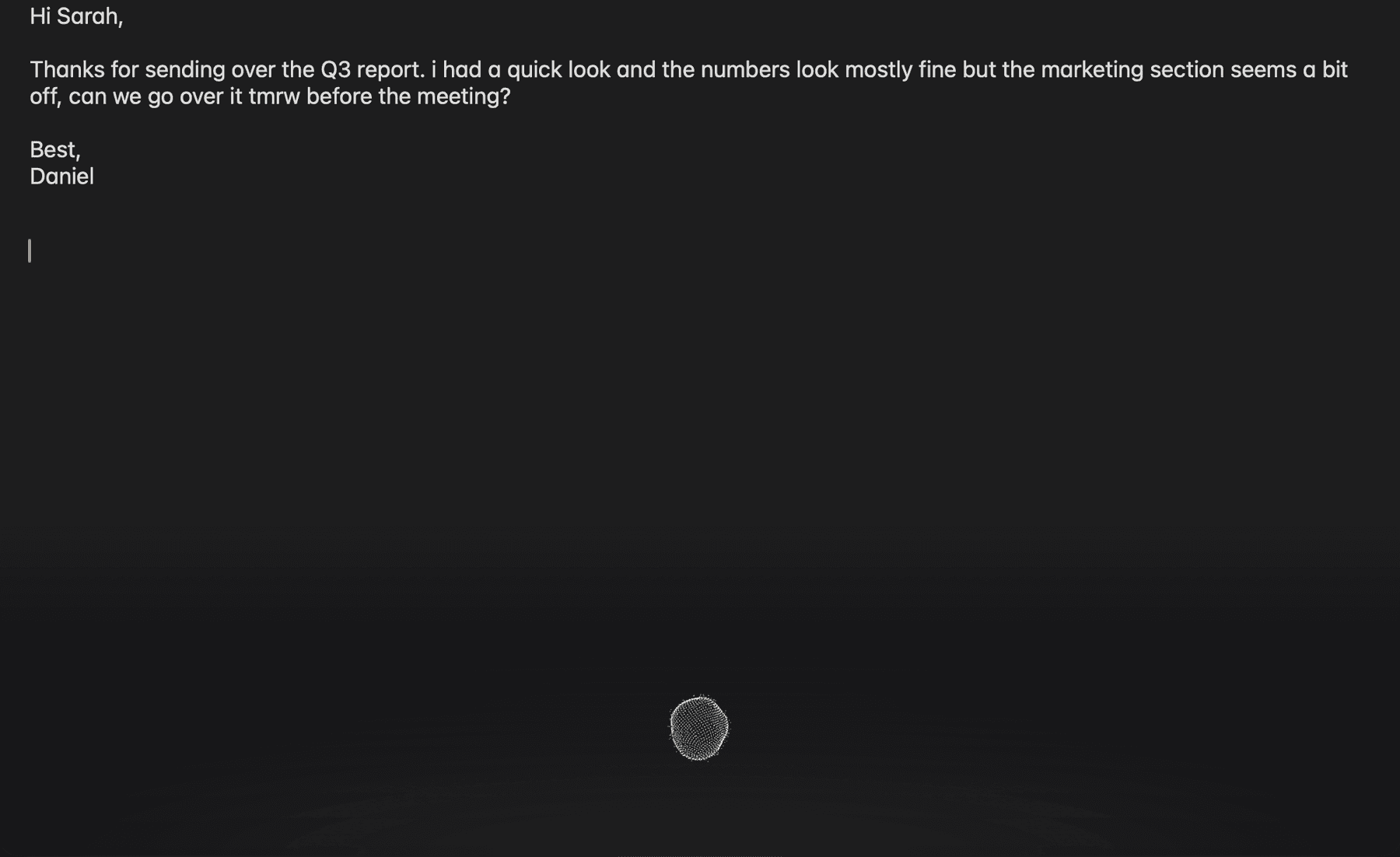
How to use it
Put the cursor in an input field, press ⌥ V, and speak. You can use either of these methods:
- Press to start and stop: Press and release ⌥ V, speak, then press it again.
- Dictate while holding: Hold ⌥ V while you speak, and release the keys to finish. After about a second, "Release to finish" appears.
| Key | What it does |
|---|---|
| ⌥ V | Starts or finishes dictation |
| Esc | Cancels dictation |
Moving to another input field also finishes dictation.
The dictation engine is the program that turns speech into text. The default, Apple, uses the speech recognition built into macOS. Whisper uses a separate speech model that you download. Both engines run on your Mac.
With Apple, you need Microphone and Speech Recognition permission. With Whisper, you need Microphone permission. macOS asks for permission the first time you use dictation.
Polish dictated text
Typeside cleans up filler words and slips of the tongue and fits the text to the input field before entering it. This runs on your Mac, and "Polishing" appears while it works.
It needs a Pro license. It uses the same model as Autocomplete (the on-device light model), so you don't need the on-device general model. The additional download it needs starts automatically when you use Dictation. If the language isn't supported or the text is long, the text is entered as is without polishing.
Settings
You can change these in Settings ▸ Dictation.
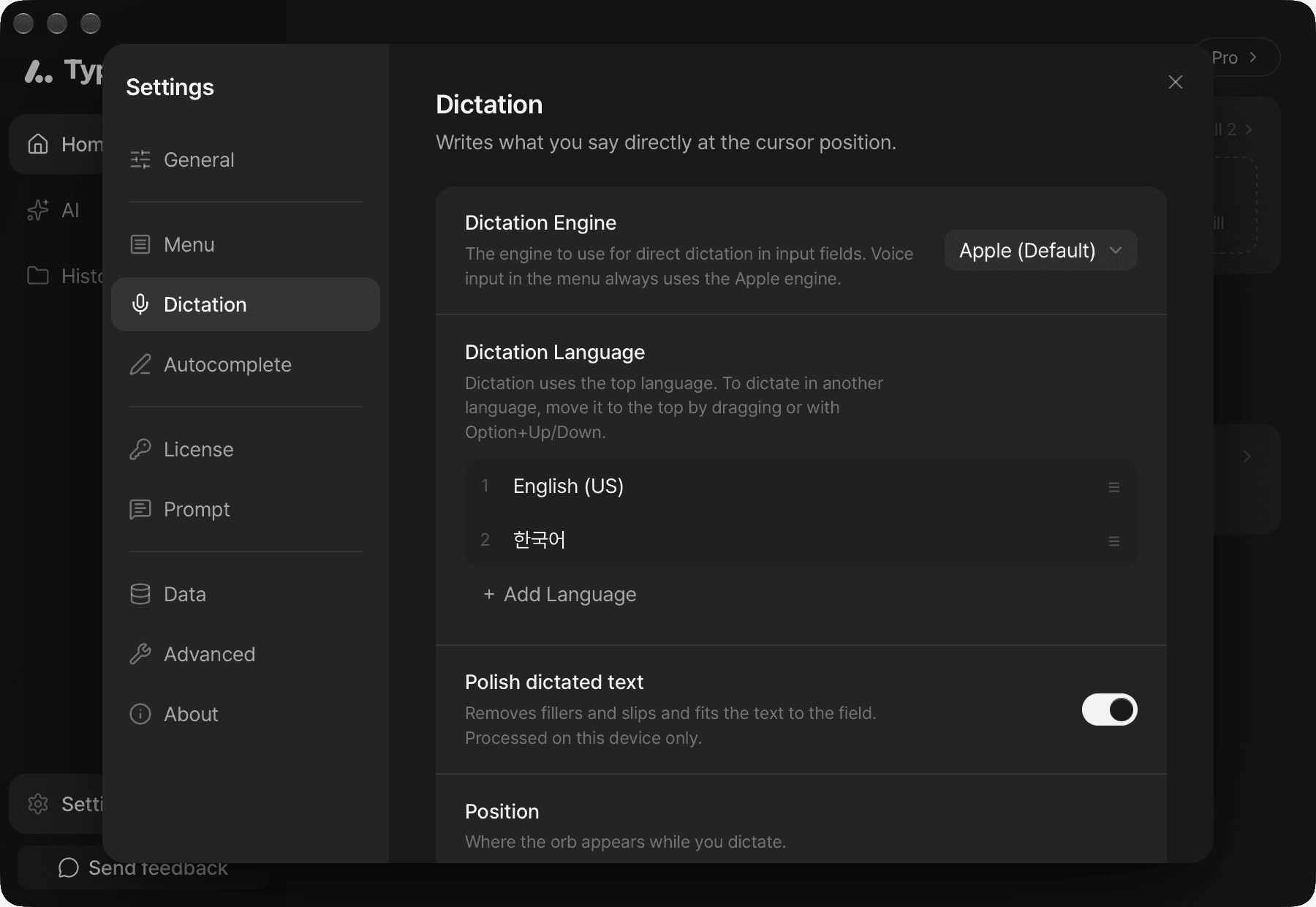
- Dictation engine: Choose Apple (Default) or Whisper. If "Model required" appears for Whisper, download the model. This setting applies only when you dictate directly into an input field. Voice input in Prompt always uses the Apple engine.
- Polish dictated text: Turns Polish dictated text on or off. It's on by default.
- Dictation language: Dictation uses the language at the top of the list. At first, it's set from the input sources you added on your Mac. To dictate in another language, drag it to the top or move it with ⌥ ↑ or ⌥ ↓. Use Add language and Remove to change the list.
- Position: Choose whether the orb appears at the Bottom of screen (default) or the Top of screen.
FAQ
Check the reason shown under Settings ▸ Dictation ▸ Polish dictated text.
Typeside couldn't confirm that the text was entered in the input field, so it copied the text to the clipboard. Press ⌘ V where you want to paste it.
Check that Microphone and Speech Recognition permissions are on. See Install and permissions.
Check that your microphone is connected and try again. If the problem continues, restart Typeside.
If you're using Whisper, download the model again in Settings ▸ Dictation ▸ Dictation engine. If you're using Apple, your Mac may not support the language. Choose another language or switch to Whisper.
In Settings ▸ Dictation ▸ Dictation language, move the language you want to the top.