Create a skill
Save requests you make often as skills and run them with a single command.
A skill saves a request you use often. For example, save the instructions "Turn the selected notes into meeting notes" as a Meeting notes skill. Next time, select your notes, press ⌥ Space to open Prompt, and type /notes to run the same request.
Create a skill
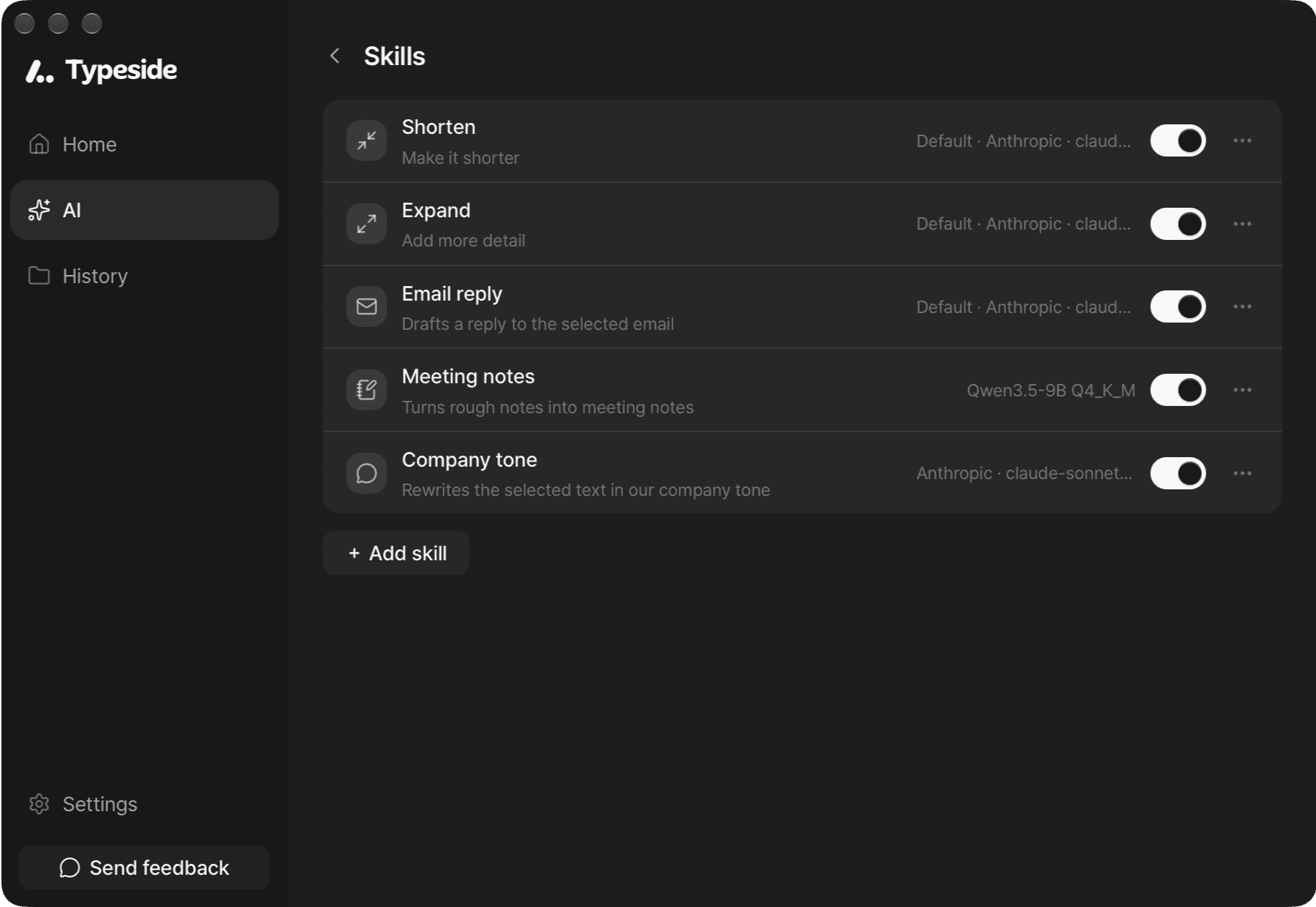
Click AI in the main window sidebar, then open Skills.
Click + Add skill below the list.
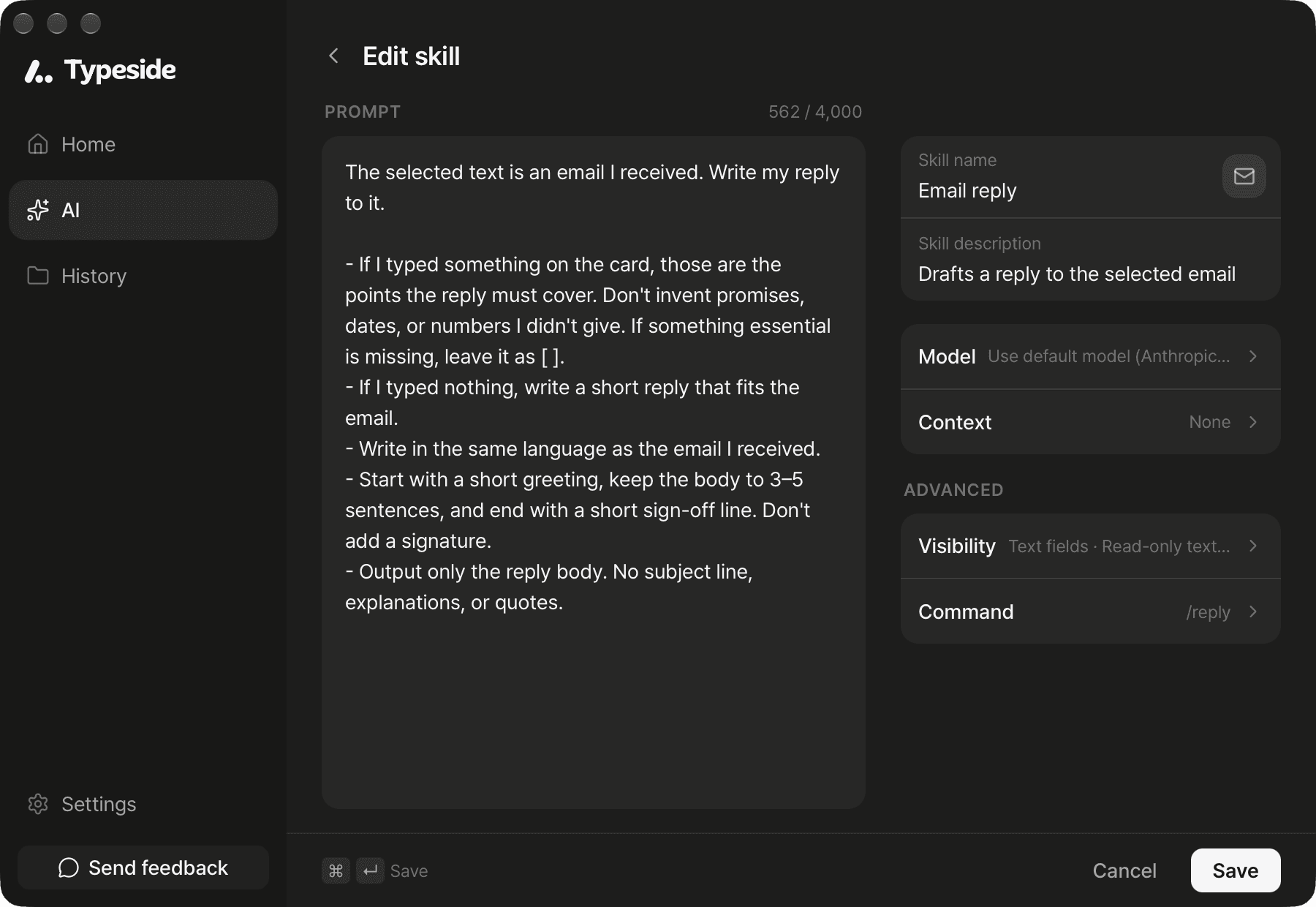
Enter a Skill name.
In the Prompt box, enter what the skill should do. This text is the skill's instructions. For tips, see Writing good instructions.
Click Save. You can also press ⌘ ↵.
Run a skill
In an input field, press ⌥ Space to open Prompt, type / and the command, then choose the skill. If you have text selected, you can also choose the skill from ⋮ on the quick edit button. For details, see Prompt and Quick edit.
More settings
You can change these items on the right side of the editor. All of them are optional.
- Skill description: Enter one line about what the skill does. It appears with the name in the skill list.
- Model: Choose the AI model that runs the skill. It starts as Use default model. For the kinds of models, see AI models.
- Context: Choose which information to send with the request: App name, Window title, Screen content, or Clipboard.
- A new skill starts with all of them off. Shorten and Expand start with App name on.
- Before you can choose Window title, Screen content, or Clipboard, allow it in Prompt context in Settings ▸ Prompt.
- Selected text is always sent, whatever this setting is.
- Visibility (under Advanced): In Where it shows, choose where the skill appears (Text fields, Read-only text). In Text selection and Text in the field, choose when it appears. For example, for a skill that fixes selected text, turn on only Text fields and set Text selection to Only when text is selected.
- Command (under Advanced): The name you type after
/in Prompt. It's filled in from the skill name, and you can change it. It can't contain spaces and can be up to 32 characters.
For where context information is sent, see Privacy.
Manage skills
- Show switch: Turn it off to hide the skill from Prompt and quick edit. The skill isn't deleted.
- Reorder: In the item's ⋯ menu, click Move up or Move down.
- Edit: Click the item, or click Edit in ⋯.
- Delete: Click Delete in ⋯. You can't recover a deleted skill.
You can save up to 20 skills of your own. The built-in Shorten and Expand skills can't be deleted. You can change only their Model, Context, and Visibility.
FAQ
Check whether the instructions are over 4,000 characters. If there's a problem with the command, the reason appears below it.
- Check that its show switch is on in the skill list.
- Check that Visibility matches where you are (in an input field or not, text selected or not).
The skill (or the default model) uses a cloud service. Change Model to an on-device model, or turn off Process on this device only in Settings ▸ Data.