Writing good instructions
Learn how to write instructions that get the results you want from a skill, with examples.
Instructions are the text you enter in the Prompt box of the skill editor. The AI model follows them when it runs the skill. For how to create a skill, see Create a skill.
What to put in an instruction
When a skill runs, the following go to the AI model along with the instructions:
- Selected text: what the skill works on.
- What you type in Prompt: your request for this run. If you type nothing, the instructions are applied to the selected text.
- Information you chose in the skill's Context: the app name, window title, and so on.
So your instructions should say what to do with the selected text and how to use what you type in Prompt.
How to write it
Start with one sentence that says what the skill does.
For example: "Turn the selected notes into meeting notes." The clearer the first sentence, the more accurate the result.
Say what it works on.
State whether it fixes the selected text or writes something new from what you type in Prompt. If it uses both, say what each one is for.
Describe the result.
State the length, tone (formal or casual), language, and format such as line breaks and lists.
Say what to keep and what to avoid.
For example: "Don't change names, numbers, or dates" and "Don't make things up."
Include 2–3 examples.
Adding two or three examples in the form "when the text looks like this → change it to this" helps the model understand what you want. This helps most with tone or formats that are hard to describe.
Start short and refine.
Begin with a few lines. Check the results, then add a line only where they miss. Instructions can be up to 4,000 characters.
Open Shorten or Expand in the editor to see the app's own instructions, read-only. Use it as a reference when you write yours.
Example skills
You can copy these instructions as they are. The skill names, commands, and skill descriptions are examples.
Email reply
Select an email you received and run this to write a reply. You can also type just the main point in Prompt, like "Tuesday works".
- Skill name: Email reply
- Command:
reply - Skill description: Writes a reply to an email you received
- Visibility: Text selection set to Only when text is selected
The selected text is an email I received. Write my reply to it.

- If I added a request of my own, those are the points the reply must cover. Don't invent promises, dates, or numbers I didn't give. If something essential is missing, leave it as [ ].
- If I added nothing, write a short reply that fits the email.
- Write in the same language as the email I received, in a polite tone.
- Start with a short greeting, keep the body to 3–5 sentences, and end with a short closing line. Don't add a signature.
- Output only the reply body. No subject line, explanations, or quotes.
Meeting notes
Select notes you jotted down during a meeting and run this to put them in a set format.
- Skill name: Meeting notes
- Command:
notes - Skill description: Turns notes into meeting notes
- Visibility: Text selection set to Only when text is selected
The selected text is rough notes taken during a meeting. Turn them into meeting notes in this format:

Decisions
- One line per decision

Action items
- Owner: task (due date)

Discussion
- One line per main point

Rules:
- Use only what's in the notes. Don't invent decisions, owners, or due dates. If an owner or due date is missing, leave that part out.
- Keep names, numbers, and dates exactly as written in the notes.
- Leave out any section that has nothing in it.
- Write in the same language as the notes.
- Output only the meeting notes. No preamble or explanations.
Company tone
Rewrites the selected text in the tone your company uses. Replace the examples with real sentences from your company.
- Skill name: Company tone
- Command:
tone - Skill description: Rewrites the selected text in our company tone
- Visibility: Where it shows set to Text fields only, Text selection set to Only when text is selected
Rewrite the selected text in our company's chat tone.

Tone rules:
- Polite but not stiff. Use contractions.
- Put the conclusion in the first sentence.
- Make requests clear, like "Could you confirm this?"
- No emoji and no exclamation marks.

Examples:
Text: meeting tmrw moved to 3 fyi all
Rewritten: Tomorrow's meeting has moved to 3pm. Please check your calendars.

Text: i havent looked at that report yet, when do i need to review it by??
Rewritten: Could you let me know when the report review is due? I haven't had a chance to look at it yet.

Text: deploy done!! ping me if anything breaks 😊
Rewritten: The deploy is done. Let me know if you run into any problems.

- Don't change the meaning, names, numbers, or dates.
- Output only the rewritten text. No explanations.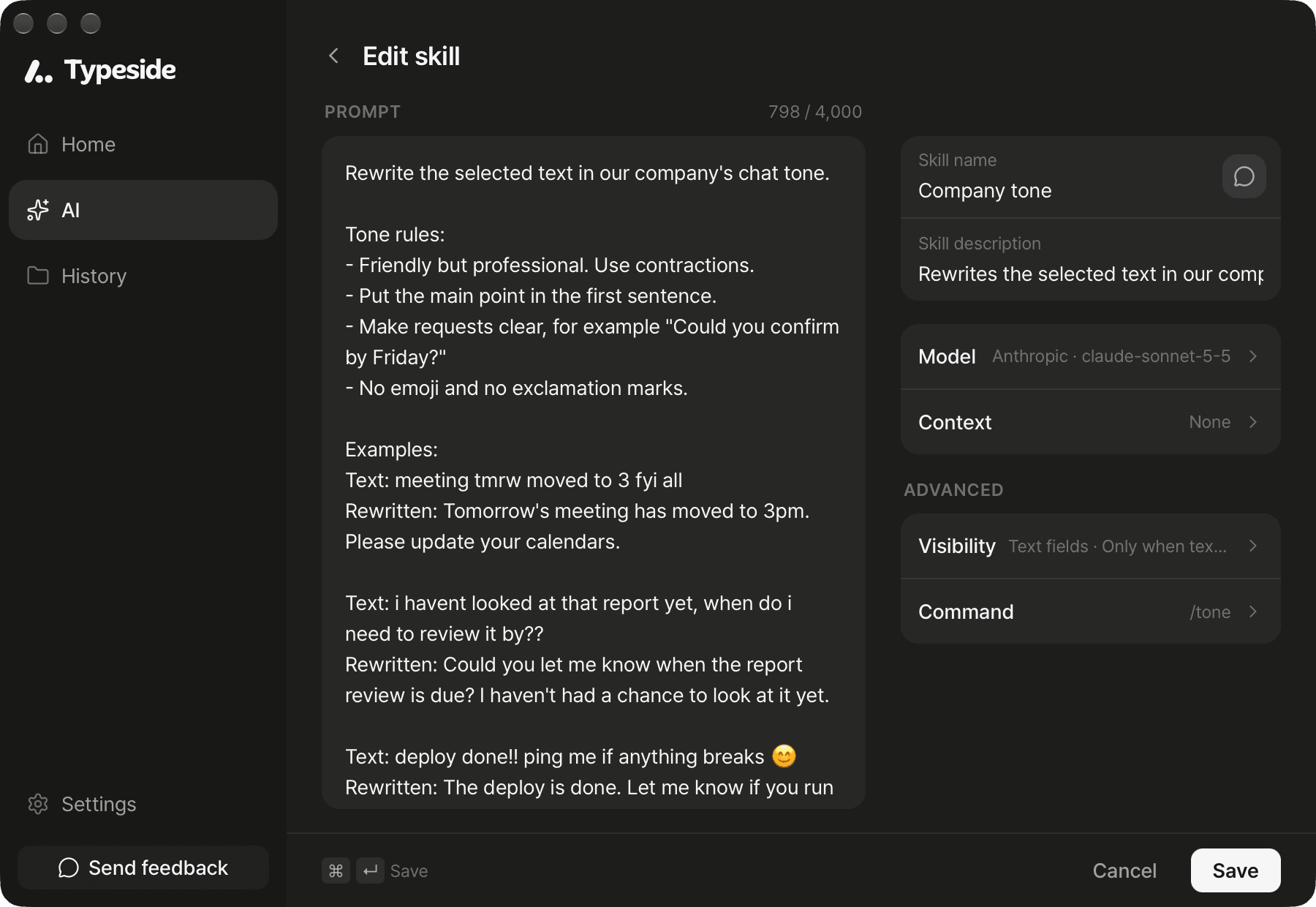
FAQ
Add "Output only the result. Don't add explanations or a preamble." to the end of the instructions.
State the target clearly in the first line, such as "the selected text".
Write out the format you want in the instructions, or add examples.
Add "Don't include anything that isn't in the text."
Change the skill's Model to a different model. See AI models.