Autocomplete
Get suggestions for what comes next in the sentence you're typing, and keep writing.
Autocomplete suggests what comes next in the sentence you're typing. It works anywhere you type, such as mail, chat, and documents. Pause for a moment while typing, and a suggestion appears in gray after your cursor.
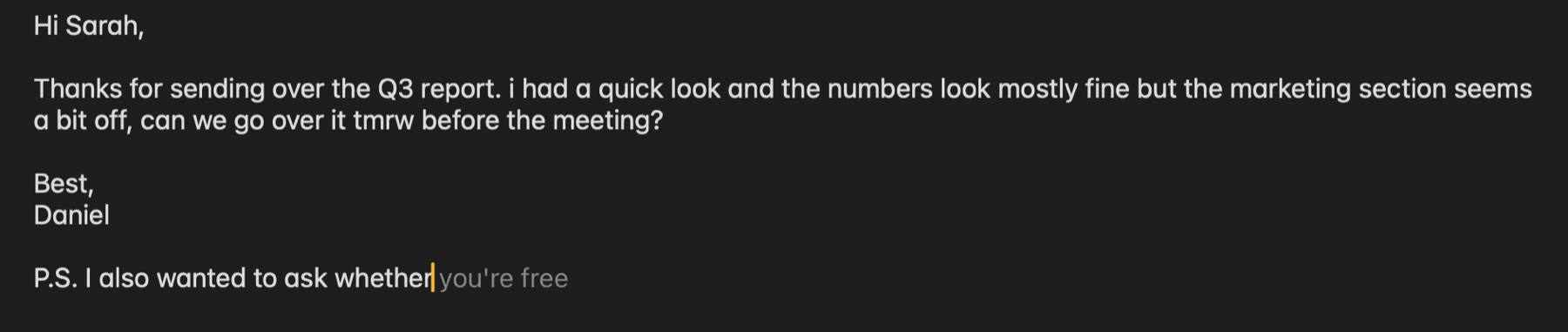
Accept a suggestion
| Key | What it does |
|---|---|
| Tab | Accepts the suggestion one word at a time |
| Shift Tab | Accepts the rest of the suggestion |
| Esc | Dismisses the suggestion |
If you don't need a suggestion, ignore it and keep typing. The suggestion disappears or changes as you type.
When you type with your cursor in the middle of a sentence, the suggestion appears in a small suggestion bubble next to the cursor. It also appears in a bubble in terminal apps. You accept it the same way.
Tips
- Accept one word at a time: Press Tab to accept only the part you want, then type the rest yourself. This makes it easier to keep your usual writing style.
- Type a letter or two more when a suggestion doesn't fit: A new suggestion appears that matches what you typed.
- Turn on Autocomplete with screen context: When related text is on screen, such as an email you're replying to, suggestions use it to fit better. See Settings.
- Turn on Tone personalization: Pro users can have suggestions use phrases they write often. See Tone personalization.
When suggestions don't appear
- Empty input fields (a suggestion appears after you type the first character)
- Password fields
- Apps you added under Settings ▸ General ▸ Exclusion
Settings
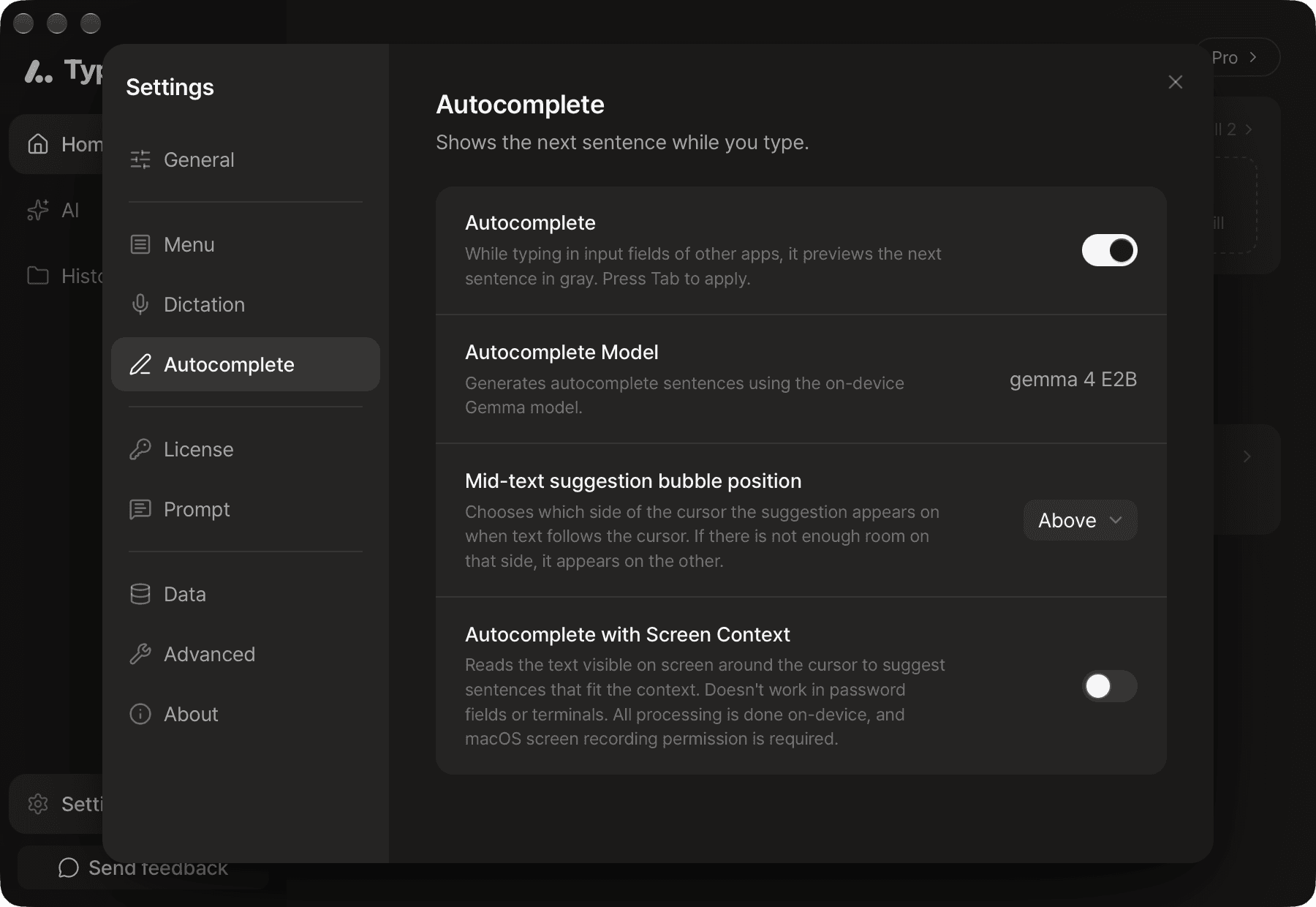
You can change these in Settings ▸ Autocomplete.
- Autocomplete: Turns Autocomplete on or off. It's off if you didn't download the AI model during setup. Turning it on starts the model download automatically.
- Autocomplete model: The AI model Autocomplete uses (the on-device light model). If you haven't downloaded it yet, a Download button appears in this row.
- Mid-text suggestion bubble position: Choose whether the suggestion bubble appears above or below the cursor.
- Autocomplete with screen context: Uses text shown on screen to make suggestions. It needs screen recording permission, and takes effect after you allow the permission and restart Typeside.
Tone personalization
To have suggestions use phrases you write often, turn on Tone personalization in Settings ▸ Data. It needs a Pro license.
Typeside doesn't save everything you type. It saves only short phrases you've used repeatedly across several documents, encrypted on your Mac. Turning it off also deletes the saved phrases. For details, see Privacy.
FAQ
- In Settings ▸ Autocomplete, check that Autocomplete is on and that there's no Download button left in the Autocomplete model row.
- Check that Accessibility permission is on. For screen recording and other permission problems, see Install and permissions.
- Check whether one of the cases in When suggestions don't appear applies.
If you press Tab before a suggestion appears, the app's usual action runs. Press it after the suggestion appears.