Connect Ollama
Use Ollama models running on this Mac in Prompt and skills.
Ollama is an app that runs public AI models on your Mac. To use Ollama models in Prompt and skills, connect it to Typeside. Ollama doesn't need an account or billing, but using it in Typeside requires a Pro license.
Set up Ollama
Download Ollama for macOS from ollama.com/download and install it.
Open the Ollama app.
Open the Terminal app (in Applications ▸ Utilities) and download a model to use. For example:
ollama pull gemma4:e2bYou can find models to download at ollama.com. Models are several GB, so downloading takes a while.
Keep the Ollama app running while you use it in Typeside.
Connect it to Typeside
Click AI in the main window sidebar, then open Models.
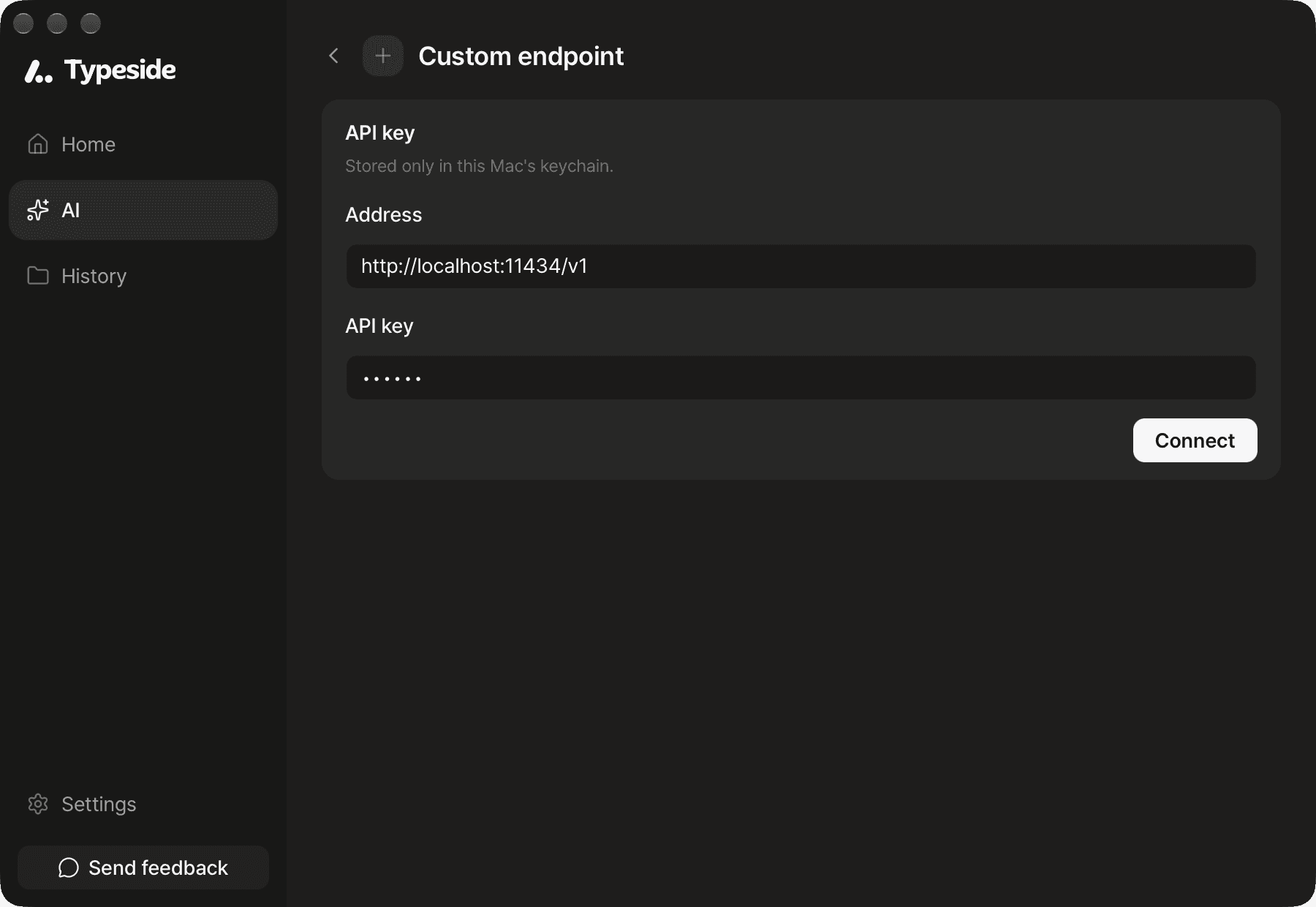
Click Add cloud model, then choose Custom endpoint at the bottom of the Not connected list. Ollama runs on your Mac, but you add it here too.
Enter this in Address:
http://localhost:11434/v1Enter ollama in API key. Ollama doesn't check the key, so you can enter anything.
Click Connect.
Once connected, the models you've downloaded in Ollama appear in the list. In the service list, it shows as "localhost:11434", marked Local server.
FAQ
Make sure the Ollama app is running and the address is http://localhost:11434/v1.
The Ollama app is off, or you haven't downloaded any models. Open the Ollama app. If you have no models, download one in Terminal with ollama pull <model name>, then click Connect again.