MCPExperimental
Connect MCP servers so the AI can use outside tools such as web search in Prompt mode and skills.
MCP (Model Context Protocol) is an open standard that lets AI apps use outside tools. When you connect an MCP server, the AI can use that server's tools, such as web search or document lookup, while it writes an answer.
Before you start
- Tools are used in Prompt mode and in skills you create. They aren't used in Improve, Translate, Summarize, Shorten, or Expand.
- Tools are used only with a cloud model or with an on-device general model that supports tools.
- With Process on this device only on in Settings ▸ Data, tools aren't used.
- Have the server's address ready. Depending on the server, you may need an API key or to sign in. The address must start with
httpsor be a server running on this Mac.
Connect an MCP server
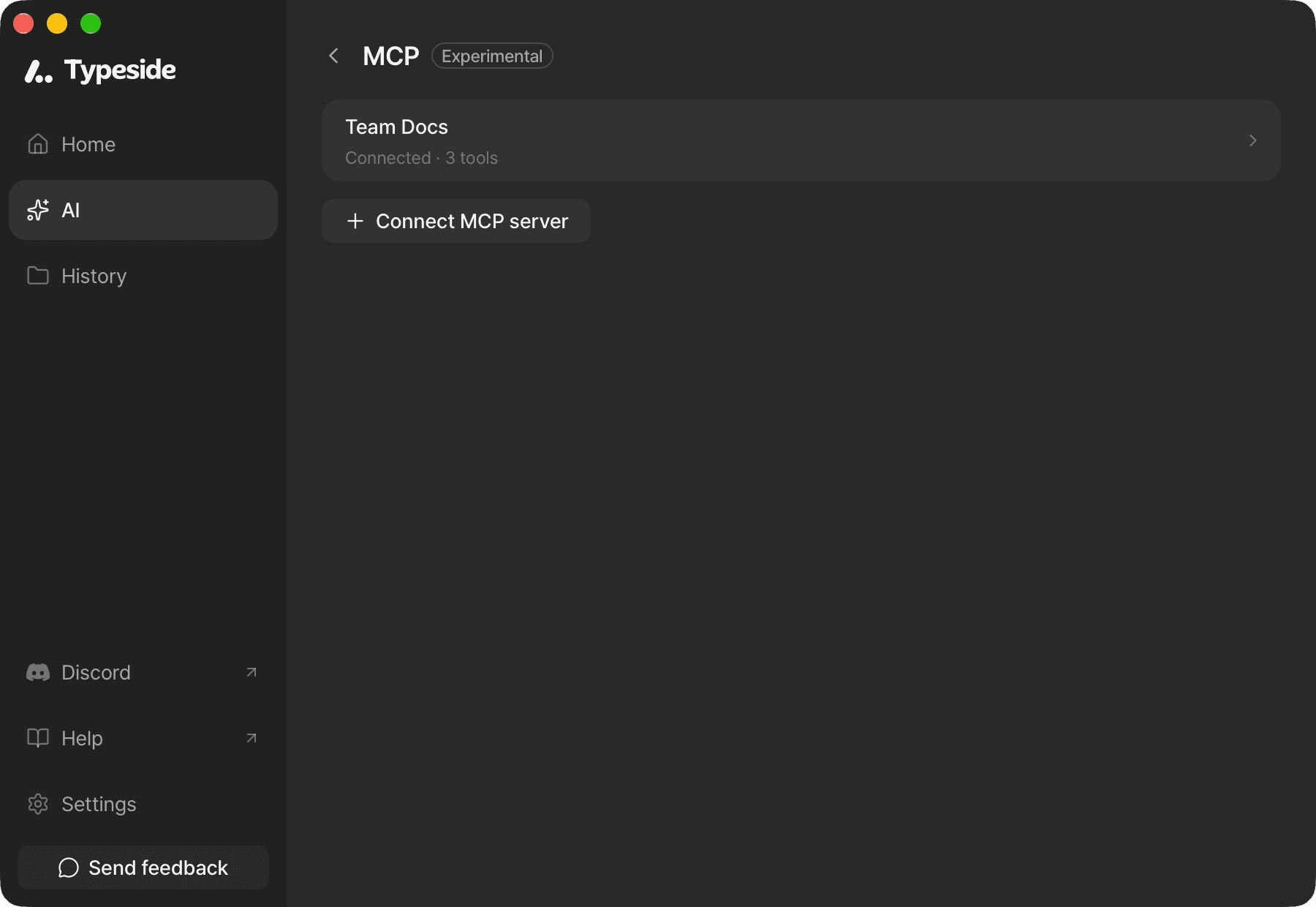
Click AI in the main window sidebar, then open MCP.
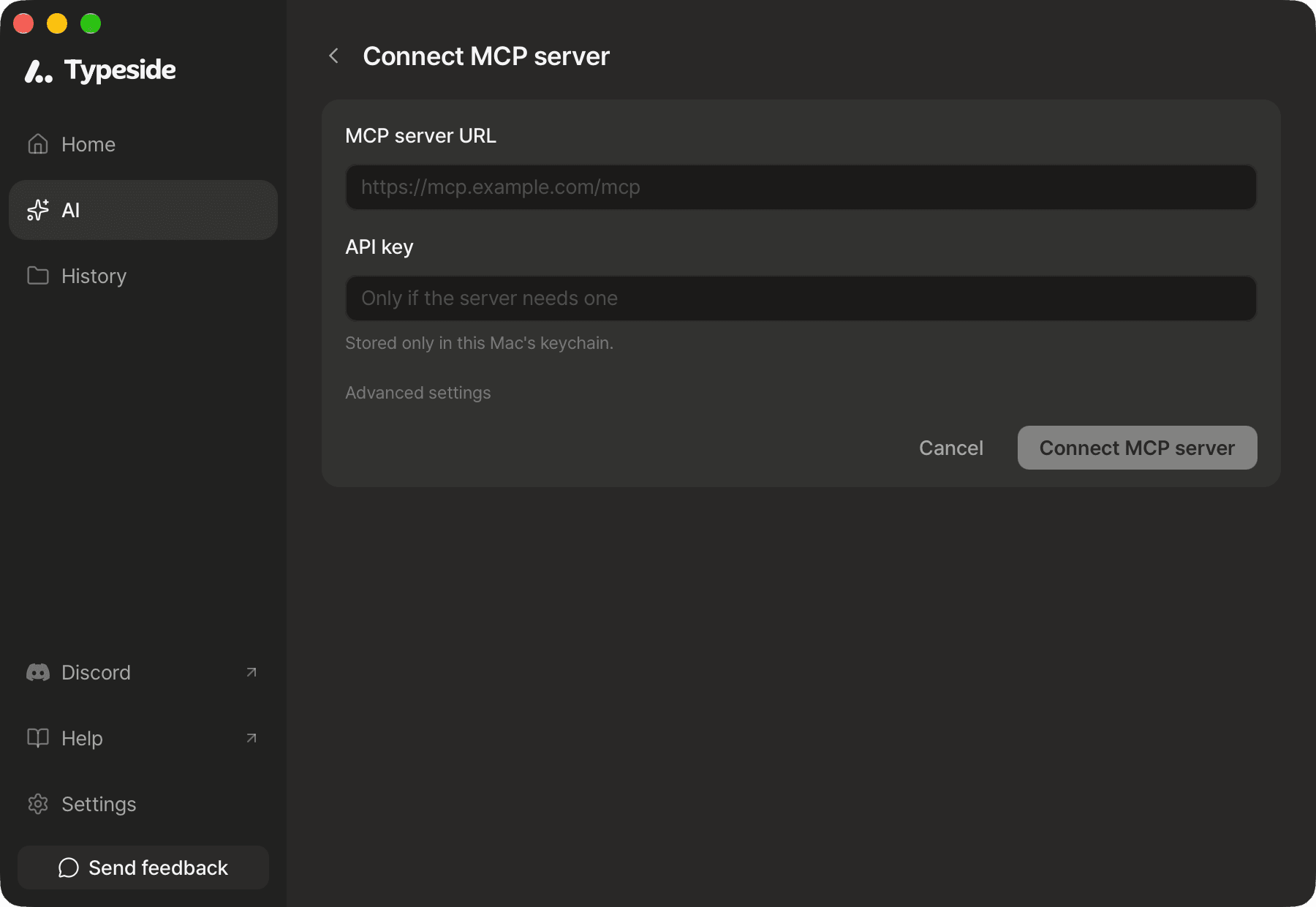
Click Connect MCP server.
Enter the server address in MCP server URL. If the server needs an API key, enter it in API key too.
Click Connect MCP server at the bottom. If the server needs you to sign in, your browser opens and "Finish signing in in your browser" appears. Finish signing in in the browser.
Once connected, the server row shows "Connected · N tools".
Under Advanced settings, enter Key header name or OAuth client ID only if the server's instructions ask for them. If you need a Redirect URL to register with the server, click Copy.
Use tools
When the AI wants to use a tool, Prompt mode shows "Typeside wants to use the … tool from …". Check Request details, then click one of these:
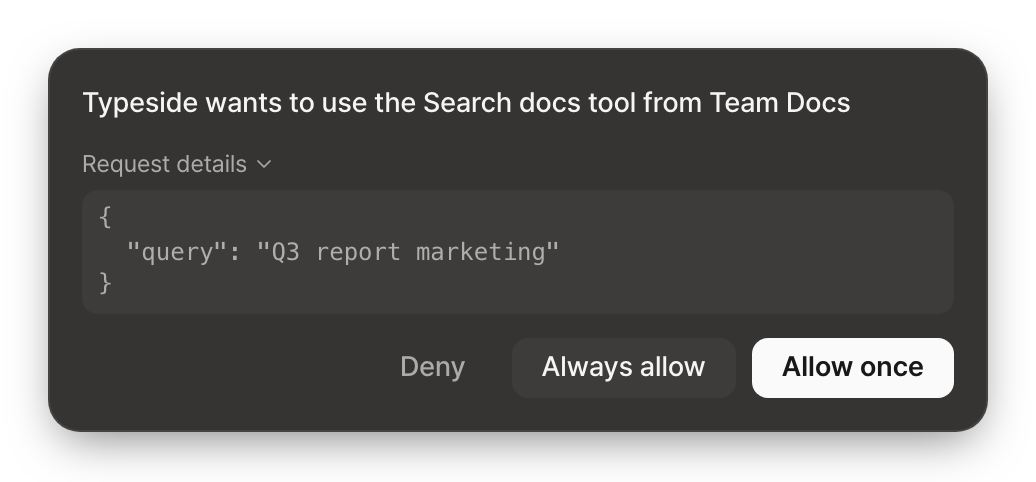
- Allow once: Runs it this time only.
- Always allow: Runs this tool without asking from now on.
- Deny: Doesn't run it.
If you don't answer within 10 minutes, it's treated as denied. While it runs, you see "Running … tool", and the tools used are shown with the result.
Even for a tool set to Always allow, Typeside asks again when:
- The request includes screen content, the clipboard, or selected text
- You follow up on a conversation that already used tools
- It's the second or a later run within one request
A tool runs at most 5 times per request.
Manage connected MCP servers
In AI ▸ MCP, click a server to see its tools.
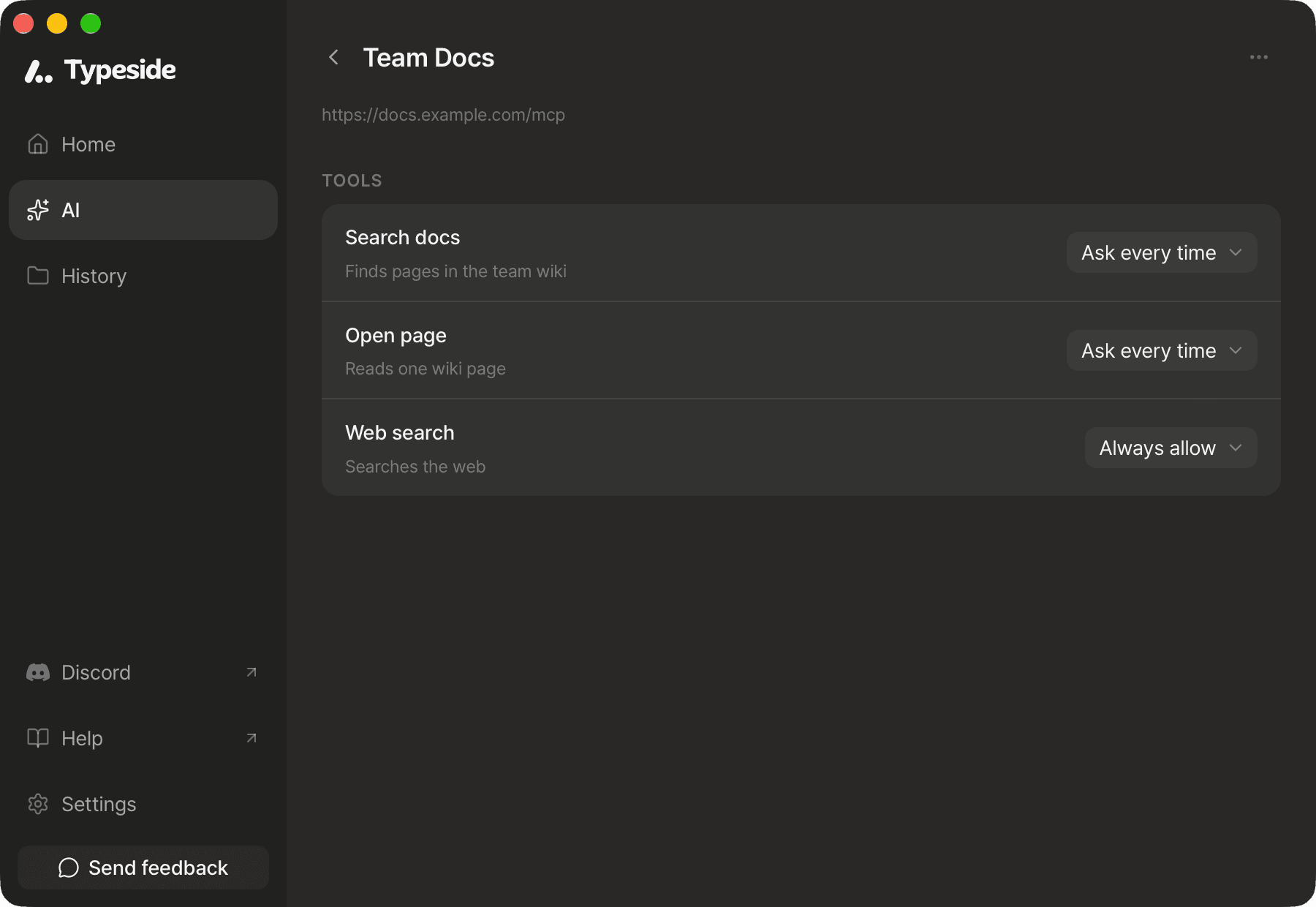
- For each tool, choose Ask every time or Always allow.
- From the ⋯ menu at the top right, choose Sign in again or Disconnect. Disconnecting also deletes the saved key and sign-in.
If the server row shows "Sign in again", click Sign in. If it shows "Can't connect", click Try again.
Security
Typeside doesn't review the MCP servers you connect. Connect only servers run by companies or people you trust.
You can check what a tool sends to its server in Request details before it runs. Use Always allow only for tools you trust.
When a tool is used, the request is sent to the MCP server. For details, see Privacy.
FAQ
Make sure the address starts with https. An http address can be connected only for a server running on this Mac.
Check your internet connection and the address, then try again. If the server is available only on a company network, you need to be connected to that network.
Make sure the address is an MCP server address. Enter it exactly as the server's instructions give it, including the path.
Make sure you copied the whole key and that it hasn't expired on the server. If the server expects the key in a particular header, enter its name in Key header name under Advanced settings.
If "Sign-in timed out." or "Couldn't sign in." appears, try again. If "Couldn't open the sign-in page." appears, check whether another sign-in is in progress, then try again in a moment.
The model you chose doesn't support tools. To use tools, choose another model that supports them. See AI models.